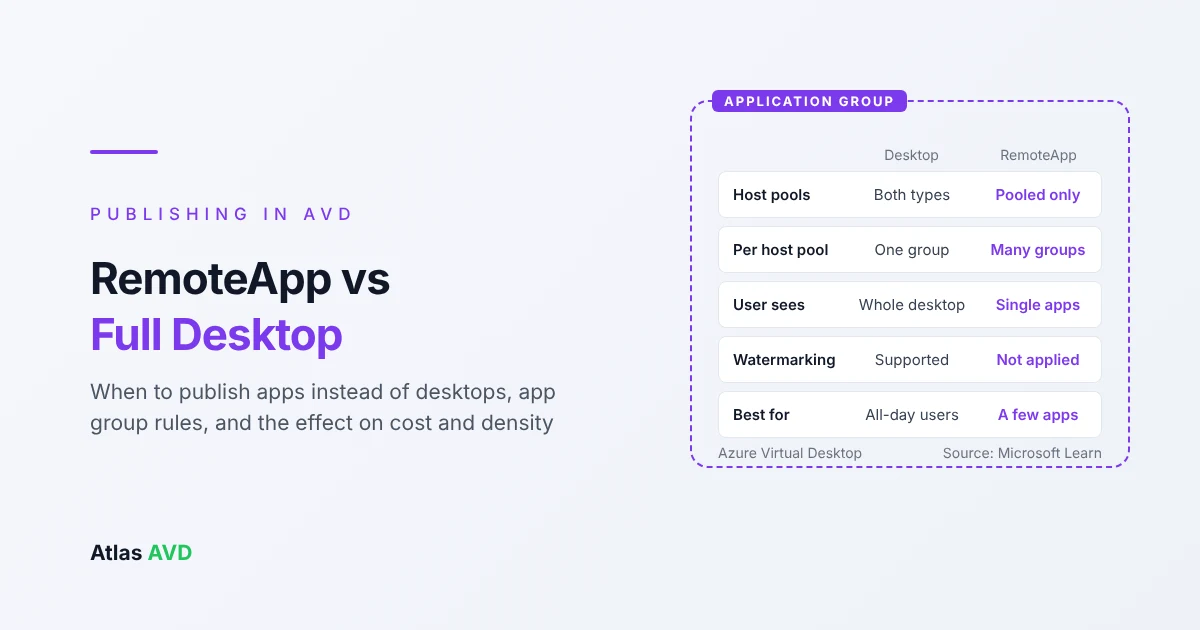
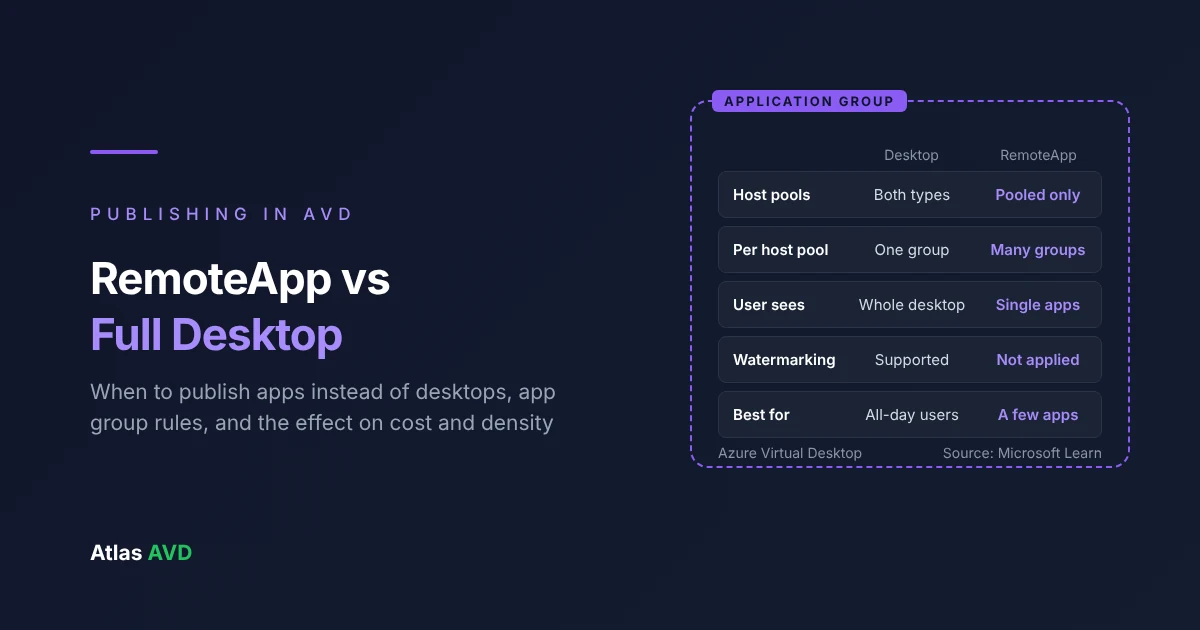
In Azure Virtual Desktop (AVD), a RemoteApp publishes individual applications that open on the user's device like local apps, while a full desktop gives users the whole Windows session on the host. Publish apps when users need one or a few applications and nothing else, and publish a desktop when users work inside the session all day. RemoteApp works with pooled host pools only, and it saves less compute than most people expect, because every user still gets a full Windows session and profile on the host.
The short version: Default to a full desktop for people who spend their day in AVD. Use RemoteApp for a line-of-business app that needs to run next to its data in Azure, for contractors or partners who should see one app and nothing else, and for users who keep their own PC but need a few hosted apps. Put desktop and RemoteApp application groups on the same pooled host pool if you like, but don't assign the same user to both: the host pool's preferred application group type decides which one they see. Closed RemoteApps leave a disconnected session behind indefinitely by default, so set Set time limit for logoff of RemoteApp sessions or a disconnect limit, or those sessions keep hosts from scaling in.
Last updated 16 November 2026. Microsoft details are drawn from Microsoft Learn as of November 2026, with each source linked below.
This guide is vendor-neutral until the section on how Atlas AVD fits. New to the building blocks? What Is Azure Virtual Desktop? explains host pools, application groups and workspaces first.
1. How RemoteApp and full desktops differ
Users never connect to a host pool directly. They're assigned to an application group, which belongs to one host pool and is registered in one workspace. The application group's type decides what users get (Azure Virtual Desktop terminology):
- Desktop: users get the full Windows desktop of a session host. Available with pooled or personal host pools.
- RemoteApp: users get individual applications that you select and publish to the application group. Available with pooled host pools only.
Either way the app runs on the session host. The difference is what the user sees and what you have to manage.
| Full desktop | RemoteApp | |
|---|---|---|
| What the user sees | A whole Windows desktop in one window, with its own Start menu and taskbar | Each published app in its own window on the local device, next to local apps |
| Host pool types | Pooled or personal | Pooled only |
| Application groups per host pool | One desktop application group | As many RemoteApp application groups as you need |
| What users can launch | Anything installed on the host that policy allows | Only the apps in the groups they're assigned, unless an app opens another one |
| Sessions per user | One per host pool | One per host pool, shared by every app from that pool |
| Files and local apps | Inside the remote desktop, separate from the local device | Remote apps and local apps side by side, so users must know which is which |
| Admin work | The image, the desktop and its policies | The image, plus publishing, icons and command lines for every app |
| Typical users | Task and knowledge workers who live in AVD all day | Users with their own PC who need one or a few hosted apps |
2. The application group rules that trip people up
Most RemoteApp problems in production are assignment problems. These are Microsoft's rules (Preferred application group type behavior):
- One desktop application group per host pool, any number of RemoteApp groups. A pooled host pool can carry a desktop group and RemoteApp groups at the same time.
- RemoteApp needs a pooled host pool. A personal host pool can only publish a desktop.
- Each application group belongs to one host pool and one workspace. It has to be registered in a workspace before users see anything.
- Users are assigned to groups, not apps. Everyone assigned to a RemoteApp group gets every app in it. The only exception is App Attach, where packages can also be assigned to users (Publish applications with RemoteApp).
- Several RemoteApp groups on one host pool add up. A user assigned to two RemoteApp groups on the same pool sees the apps from both, so you can build groups per department or per app and combine them.
- The preferred application group type decides what a user assigned to both sees. If a user is assigned to a desktop group and a RemoteApp group on the same host pool, they see only one of them, set by the host pool's preferred application group type.
The sixth rule causes the most support tickets. Here's what users see:
| Groups on the host pool | User is assigned to | Preferred type | User sees |
|---|---|---|---|
| Desktop and RemoteApp | Desktop only | Either | Desktop |
| Desktop and RemoteApp | RemoteApp only | Either | RemoteApp apps |
| Desktop and RemoteApp | Both | Desktop | Desktop only |
| Desktop and RemoteApp | Both | RemoteApp | RemoteApp apps only |
| Desktop and RemoteApp | Both | Not set | Desktop only |
Two portal defaults matter here. When you create a host pool in the Azure portal, the preferred application group type defaults to Desktop, and the portal creates a desktop application group named after the pool with a -DAG suffix whatever type you pick. If the pool is for RemoteApp only, set the preferred type to RemoteApp and remove the desktop group, or leave it unassigned. Host pools created with PowerShell, the CLI or a template don't get either default.
Microsoft built the setting to stop a user holding a desktop session and a RemoteApp session on the same host pool at once, which it says can overload hosts, hang sign-ins and crash apps. The rule doesn't stop a user having a desktop from one host pool and RemoteApps from another. That's a supported design, but it means two sessions, on two hosts, each mounting the user's profile. With FSLogix, the second session can't open a profile container the first one already has open unless you plan for it: FSLogix profile locked and temporary profiles covers the options, including read-only fallback with ProfileType 3.
3. When to publish apps and when to publish a desktop
Start from the user, not the app. If someone spends most of the day inside AVD, give them a desktop. If AVD is where one or two apps live and the rest of their work is on their own device, publish the apps.
| Scenario | Publish | Why |
|---|---|---|
| Office staff whose whole working day is in AVD | Full desktop | One place for Outlook, Teams, files and line-of-business apps. Switching between local and remote windows all day is tiring |
| A line-of-business app whose database is in Azure | RemoteApp | The app runs next to its data, so a chatty client/server app stops being slow over the WAN. Users keep their own PC for everything else. QuickBooks Desktop on AVD and Sage on AVD are common examples |
| Contractors, partners or auditors who need one app | RemoteApp | They see the app and nothing else on the host. Pair it with App Control, below |
| A legacy app that needs an old OS or runtime | RemoteApp, often from a Windows Server pool | Users get the app without anyone else living on that OS. Windows 11 multi-session vs Windows Server covers when Server is the right host |
| Developers or engineers on personal desktops who also need a shared tool | Desktop for their own work, RemoteApp for the tool from a pooled pool | The tool is installed and patched once. Pooled vs personal host pools covers the hybrid pattern |
| Users on Chromebooks, thin clients or tablets | Full desktop, usually | A desktop is easier to use when the local device can't do much on its own |
| A phased migration from Citrix or VMware Horizon | Match what users had | Published applications map to RemoteApp groups, published desktops to desktop groups. Citrix to AVD migration has the full mapping |
| Users who need a GPU-heavy app now and then | RemoteApp from a GPU pool, desktop from a standard pool | The expensive host only serves the GPU app |
RemoteApp isn't a security boundary. Publishing only some apps doesn't stop a determined user reaching others: an app's File > Open dialog, a help link that opens a browser, or a script host can all start other programs on the host. If the point of RemoteApp is to restrict what people can run, enforce it with App Control for Business or AppLocker on the session hosts, and turn off redirections the users don't need. The AVD security checklist covers both.
4. What users notice
RemoteApp feels local when it works, and confusing when it doesn't. Plan for these:
- Every app from a host pool shares one session. The first app a user opens signs them in to a host and loads their profile. Later apps from the same host pool open in that session, so they start much faster. Apps from a different host pool start a second session.
- Closing the last app disconnects, it doesn't sign out. When all of a user's RemoteApp windows and notification area icons are closed, Windows keeps the session active for 20 more seconds, then disconnects it. By default that disconnected session stays on the host indefinitely, so reopening an app is quick (RemoteApp sessions are disconnected). Section 5 explains why that costs you.
- Some features only work in a full desktop. Watermarking isn't applied to RemoteApp sessions (Screen capture protection and watermarking in AVD), and HEVC/H.265 hardware encoding needs a desktop application group (GPU VMs for AVD). Screen capture protection does cover RemoteApp.
- Some FSLogix settings behave differently. PreventLoginWithFailure and PreventLoginWithTempProfile don't apply to RemoteApp sessions, so a user whose profile fails to attach can end up working in a temporary profile without being signed out. FSLogix troubleshooting covers how to spot it.
- Microsoft Store and MSIX apps need a stable path. A Store app's install folder changes with each update, so publish it with a shell:appsFolder path instead of its .exe, and give it an icon from a local path that doesn't change. New Teams is published the same way (Teams on Azure Virtual Desktop).
- "Time to connect" ends sooner. In AVD Insights it stops when the first app starts for a RemoteApp, but at shell ready for a desktop, so the two aren't directly comparable. AVD slow logon explains the stages.
- Files are the biggest source of confusion. A remote app saves to the host's view of the world: the user's profile, OneDrive and mapped shares, or redirected local drives if you allow them. Tell users where "Save" goes before they lose a file in the session.
5. Cost and density: what RemoteApp actually changes
It's tempting to assume RemoteApp users are cheaper because they don't run a whole desktop. The real effect is smaller, and it can go either way.
What stays the same:
- Licensing. The same Microsoft 365 or Windows Enterprise per-user licenses cover desktops and RemoteApps on Windows 11 Enterprise multi-session. Windows Server hosts need RDS CALs either way.
- The session itself. Each RemoteApp user still signs in, loads a profile, runs their own copy of the app and keeps their own processes on the host. Logon is still the CPU peak.
- Compute pricing. You pay for the session hosts by the hour, whatever users see on them.
What can change:
- Fewer apps per user. The saving comes from what users don't run. Someone with one published app isn't also running Outlook, Teams and a browser full of tabs on the host, so they use less memory and CPU than a desktop user. Someone with eight published apps is a desktop user in all but name.
- Disconnected sessions. Because closed RemoteApps leave a disconnected session behind indefinitely by default, a pool of occasional app users can hold far more sessions than it has active users. Each one keeps its memory, keeps a profile container mounted and counts toward the host's session limit, so autoscale and drain can't take that host out of service. Set Set time limit for logoff of RemoteApp sessions (under Remote Desktop Session Host > Session Time Limits) or Set time limit for disconnected sessions. Where both are set, the shorter one wins.
- Pool layout. Publishing a small app from its own small pool can be less efficient than publishing it from a large desktop pool, because a small pool needs at least one host on all day for very little load. Share hosts between desktop and RemoteApp groups where the image and OS are the same, and give an app its own pool only when it needs a different image, OS, region or GPU.
There's no fixed users-per-vCPU figure for RemoteApp. Classify RemoteApp users by what the published apps do, using the light, medium and heavy workloads in the Azure Virtual Desktop sizing guide, then prove the density in a pilot. The AVD cost calculator estimates what a pool costs for your user count.
6. Setting up RemoteApp, step by step
- Create or choose a pooled host pool whose session hosts have the apps installed, or have them delivered with App Attach. If the pool is for apps only, set its preferred application group type to RemoteApp.
- Create a RemoteApp application group for the host pool, and register it in a workspace.
- Add applications. Choose an application source of Start menu, File path or App Attach. At least one session host must be powered on, because Azure reads the Start menu and app list from a running host. For each app, set a display name, an icon and whether a command line is allowed, required or not allowed.
- Assign users or groups to the application group. Assigned users need the Desktop Virtualization User role on it, which assigning in the portal grants.
- Set the RemoteApp logoff limit and a disconnect limit, by Group Policy or Intune, so closed apps don't hold sessions open.
- Test with a pilot user in Windows App on each device type you support, including what happens when they open a second app and when they close the last one.
App Attach vs WinGet vs golden image covers how to get the apps onto the hosts in the first place, and the AVD PowerShell cheat sheet has the cmdlets for each step, from New-AzWvdApplicationGroup to New-AzWvdApplication and the role assignment.
7. Where Atlas AVD helps
Atlas AVD runs in your own Azure subscription and manages desktop and RemoteApp pools from one console. Here's what it does for RemoteApp, and where it stops.
Choose desktops or apps when you deploy. In the Deploy Host Pool wizard, Application Type is either Full Desktop or Published Apps. Published Apps creates the host pool with RemoteApp as its preferred application group type and gives it a RemoteApp application group instead of a desktop one. It's offered for Pooled host pools only: choosing a Personal host pool switches the wizard back to Full Desktop, which is Azure's rule. VM Provisioning then builds the session hosts from your image.
Add groups to an existing pool. Create App Group creates a new application group for a host pool, with a Type of Desktop or RemoteApp. Each application group's page shows its type, host pool and workspace, its applications and its user assignments, and lets you edit its display name and the display names of its apps.
Publish and remove apps with Atlas Advisor. Atlas Advisor can publish an app to a RemoteApp application group, from an .exe path on the session hosts or from an App Attach package, and remove one. It proposes the change first, and it only runs after you confirm it by typing the application group's name. It never sets command-line arguments, so publish an app that needs one in the Azure portal. App Attach in Atlas assigns packages to host pools and groups, but doesn't add the package's apps to a RemoteApp group itself: publish them with Atlas Advisor or in Azure.
Close the disconnected-session gap from the Settings Matrix. Set time limit for logoff of RemoteApp sessions is a row under Session Host Policies in the Settings Matrix, set once for every tenant or differently for one host pool. Disconnect Session Timeout sets how long any disconnected session is kept before it's signed out, at the same Global, Tenant and Host Pool levels. Both are written when a host is built. For hosts that are already running, Atlas pushes a changed Disconnect Session Timeout to them in the background, and the RemoteApp row reaches them when an administrator chooses Apply to session hosts.
FAQ
What is RemoteApp in Azure Virtual Desktop?
RemoteApp is a way of publishing individual applications from Azure Virtual Desktop instead of a full desktop. The app runs on a session host in Azure, but it opens in its own window on the user's device, next to their local apps. You publish apps by adding them to a RemoteApp application group and assigning users to that group.
Can I use RemoteApp with a personal host pool?
No. Microsoft supports RemoteApp application groups on pooled host pools only. A personal host pool can only publish a desktop. Users with a personal desktop can still get RemoteApps from a separate pooled host pool.
Can a host pool have both a desktop and RemoteApp application group?
Yes, on a pooled host pool. It can have one desktop application group and any number of RemoteApp application groups. If one user is assigned to both types on the same host pool, they only see the type set as the host pool's preferred application group type.
Why can't my users see their RemoteApps?
The most common cause is that they're also assigned to the desktop application group on the same host pool, and the preferred application group type is Desktop, which is the Azure portal's default. Other causes are an application group that isn't registered in a workspace, or users who aren't assigned to the group.
Is RemoteApp cheaper than a full desktop?
Not automatically. The licenses and the hourly cost of session hosts are the same. A RemoteApp user who runs one app uses less of a host than a desktop user, but disconnected RemoteApp sessions stay on hosts indefinitely by default and stop them scaling in. Set a RemoteApp logoff limit or a disconnect limit to keep the saving.
What happens when a user closes a RemoteApp?
When the user closes their last RemoteApp window and notification area icon, the session stays active for 20 seconds, then disconnects. By default it stays disconnected indefinitely, so the next app opens quickly. The Group Policy setting Set time limit for logoff of RemoteApp sessions signs those sessions out after a delay you choose.
Does RemoteApp restrict what users can run on the host?
No. Publishing only some apps doesn't stop users opening other programs through an app's dialogs, links or scripts. To control what can run on the session hosts, use App Control for Business or AppLocker.
Sources
- Microsoft Learn: Azure Virtual Desktop terminology
- Microsoft Learn: Preferred application group type behavior for pooled host pools
- Microsoft Learn: Publish applications with RemoteApp in Azure Virtual Desktop
- Microsoft Learn: RemoteApp sessions are disconnected when all RemoteApp windows are closed
- Microsoft Learn: Watermarking in Azure Virtual Desktop
- Microsoft Learn: Azure Virtual Desktop Insights glossary