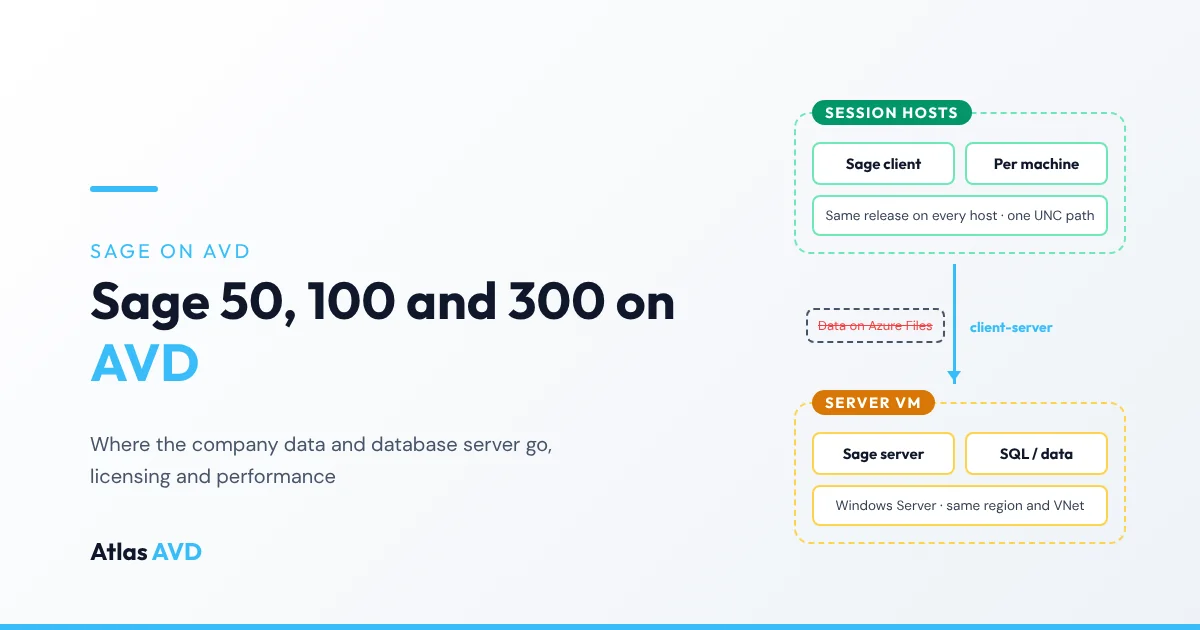
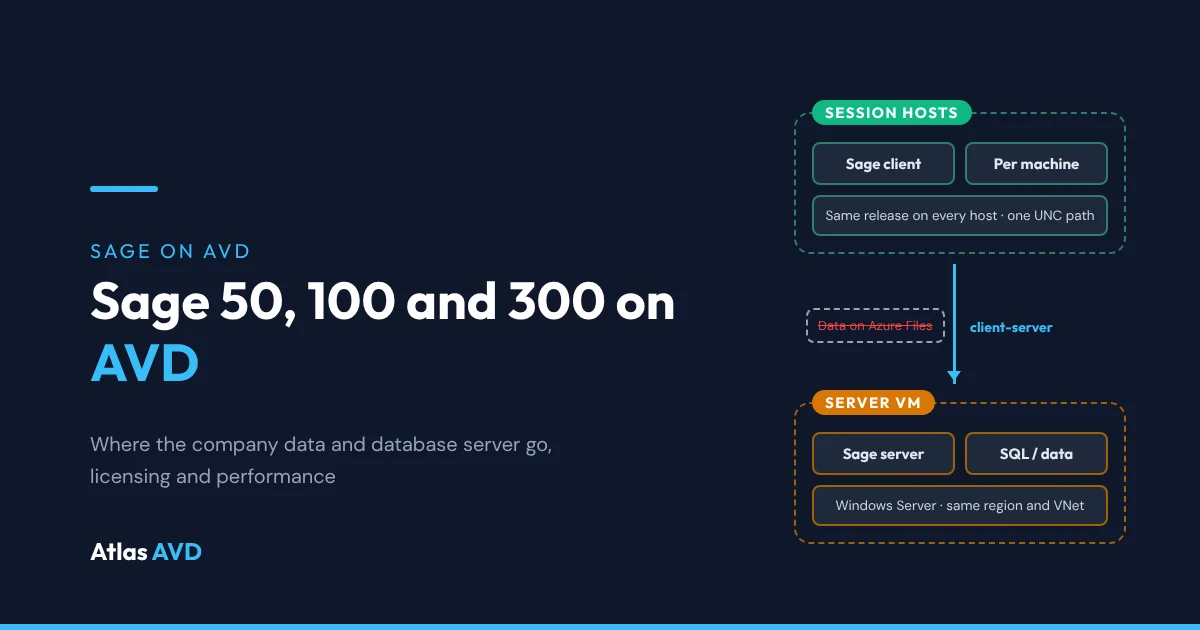
Sage accounting runs on Azure Virtual Desktop (AVD) the way Sage documents it for Remote Desktop Services: install the Sage program on the session hosts, and keep the company data and its database engine on a separate Windows Server VM in the same Azure region and virtual network. That's the layout Sage 50, Sage 100 and Sage 300 all expect, because the data needs a server that stays put while pooled session hosts are drained, reimaged and replaced.
The short version: build a Windows Server 2022 VM in the host pool's region and virtual network for the Sage data and database (the Sage 100 server, Sage 300's SQL Server, or Sage 50's shared data folder). Install the matching Sage release on your golden image, point it at that server by UNC path, and never keep company data on Azure Files, in an FSLogix profile or on a session host. If you want to stay inside what Sage lists, use Windows Server session hosts: none of Sage's requirement pages name Windows 11 Enterprise multi-session.
Which Sage product you run decides the layout
"Sage" covers several unrelated products with different databases. All of them split into a part people use and a part that holds the data, and on AVD those parts live on different machines.
| Product | On the session hosts | On the server VM | What Sage says about Remote Desktop |
|---|---|---|---|
| Sage 50 (U.S. Edition) | Sage 50, installed per machine | The shared company data and the Sage 50 database service | Windows Server 2019 or higher is required to run in a Terminal Services environment |
| Sage 50 Accounts (UK and Ireland) | Sage 50 Accounts | The company data, on the Windows computer that runs the Sage Data Service | Sage supports installing it on a Terminal Server, but not its speed or performance there |
| Sage 100 Advanced and Premium | The Sage 100 workstation component | The Sage 100 server, plus SQL Server for Premium | Supported, with the server "within the LAN that is not running RDS/Citrix" |
| Sage 300 | The full Sage 300 System Manager and programs | Microsoft SQL Server 2019, 2022 or 2025 | Supported "only for Sage 300 Classic (Visual Basic) programs", not web screens |
The rule that runs through all four: the session hosts run the program, and a server that never gets reimaged holds the data. Sage 100's installation guide puts it most plainly: "The Sage 100 server application should be installed on a server within the LAN that is not running RDS/Citrix," because "having the additional burden of running RDS will significantly slow down the server." Sage 300's compatibility guide says the same thing in other words: "database engines should be separate from the Citrix/Terminal server."
Where to put the company data
| Location | Works for multi-user Sage? | Our verdict |
|---|---|---|
| Windows Server VM in the same region and virtual network as the hosts | Yes | Use this. It's Sage's client-server layout, moved into Azure next to the hosts |
| A session host in the pool, holding the data itself | Until the host changes | Avoid. Pooled hosts are drained, reimaged, replaced and powered off by scaling, and the books go with them |
| Azure Files, or any NAS | Sage 100, Sage 300 and the UK Sage Data Service need a Windows server to run on | Avoid. There's nowhere for the database engine to run |
| An FSLogix profile, OneDrive or a user's Documents folder | No | Never. The data belongs to one user's profile, and sync tools aren't built for a live database |
| An office server on-premises, over VPN | Slowly | Avoid. Sage 100's guide warns that a VPN on a slow link may slow performance, and every round trip crosses the tunnel |
Keep the server in the same Azure region and virtual network as the session hosts. Sage clients send many small requests to their data, so the distance between the session host and the server matters far more than the distance between the user and AVD. That's why AVD fixes the "Sage is slow over the VPN" complaint: the user's connection only carries the screen, while the busy traffic stays inside one Azure region.
Sage 50 on AVD
Sage 50 U.S. Edition
Sage's 2026 system requirements give Sage 50 a short Terminal Services section: "Windows Server 2019 and higher along with Remote Desktop Connection or Remote Desktop Web Connection client is required to run in a Windows Terminal Services environment", and "Terminal Server requires additional memory when more than one user is running under Windows Terminal Services." The named-user limits are the same as on a normal network.
| Sage 50 U.S. edition | Multi-user | Named users |
|---|---|---|
| Pro Accounting | No | 1 |
| Premium Accounting | Yes | Up to 5 |
| Quantum Accounting | Yes | Up to 40 |
For the data, Sage says multi-user mode "is optimized for: Windows Server 2022; Windows Server 2019 client-server networks". Install Sage 50 on the server VM first so its database service runs there, share the company folder, then install Sage 50 on the golden image and point it at the server by UNC path, such as \\sage-server\Sage\Company, rather than a mapped drive letter that might differ between hosts. Keep the computer name of the server, and of your session hosts, to 15 characters or less: Sage lists that as a requirement.
Sage 50 Accounts (UK and Ireland)
Sage's UK knowledge base says Sage Technical Support can help with "Sage 50 Accounts installation on Terminal Server", and that "the current Licence Agreement allows you to run Sage 50 Accounts remotely", within the number of users your licence covers. It also lists what it won't support: "Sage 50 Accounts speed or performance", and the set-up of remote access and the network. Its own recommendation for working away from the office is Remote Data Access, which keeps the data in Sage's cloud and the program on each PC.
On AVD that means two choices:
| Approach | How it works | Best for |
|---|---|---|
| Sage 50 Accounts on the session hosts, data on a server VM | The Windows computer holding the data runs the Sage Data Service, and Sage 50 Accounts on each host opens it over the virtual network | Firms that want one desktop, in Azure, for everything |
| Remote Data Access | Sage syncs the company data through its own cloud service | Firms that would rather install Sage on each PC than host it |
Two details from the same article matter on AVD: other Sage software that integrates with Sage 50 Accounts must be installed on the same computer, so put it on the image too; and you "can't integrate Sage 50 Accounts on the remote computer with Microsoft Office on the local computer", so Microsoft 365 Apps belongs on the session hosts as well. See Microsoft 365 Apps shared computer activation on AVD for installing it there.
Sage 100 on AVD
Sage 100's installation guide has a chapter called "Running in a Remote Desktop Services or Citrix Environment" for Sage 100 Advanced and Premium, and it maps straight onto AVD:
- Install the Sage 100 server on its own Windows Server VM. "This server should not have RDS running on it." Sage 100 Premium also needs its SQL Server, on the same VM or another one next to it.
- Activate the server first. Because many users share one copy of the client, Sage 100 needs a multi-user activation key, and activating the server is what produces it.
- Run Workstation Setup from a session, not at the console. Sage says to run the workstation installation wizard "from a RDS/Citrix session" logged on as an administrator, and not "directly at the RDS/Citrix Server", so the registry entries and the activation key file land in the right place. On AVD, run it in a session on the image VM, then capture the image.
- Grant NTFS permissions. Users need permission to the MAS90 folder where the client is installed on each host.
- Make client names unique. Sage 100 tracks each session by the name of the device the user connects from, so Sage says to "verify that all user's machines that are coming in through the Terminal Server have unique workstation names".
Sage 100 Standard is a file-based edition and isn't covered by that chapter. Check its row in Sage's Supported Platform Matrix before you put it on AVD.
Sage 300 on AVD
Sage 300's compatibility guide is the most specific of the four. For the 2027 release it says:
- Azure is a supported virtual environment. "Sage 300 2027 is supported in Vmware ESX, Microsoft Hyper-V and Microsoft Azure virtual environments." Sage support will only take on issues it can reproduce on physical hardware, and won't address performance issues in those environments.
- Install the full program on the hosts. "The full Sage 300 System Manager and programs need to be installed on the Citrix/Terminal servers."
- Keep SQL Server separate. Database engines "should be separate from the Citrix/Terminal server". Sage 300 2027 supports SQL Server 2019, 2022 or 2025, in Enterprise, Standard or Express edition.
- Classic screens only. Terminal Server and Citrix are supported "only for Sage 300 Classic (Visual Basic) programs, no for web screens". Users of the web screens open them in a browser instead.
- 64-bit Windows Server 2019, 2022 or 2025 is supported as the application server.
Size SQL Server for the database, not for the users: put it on Premium SSD in the same region, and keep it out of the host pool's scaling plan.
Which operating system for the session hosts?
| Host OS | What Sage lists | Microsoft licence for AVD users |
|---|---|---|
| Windows Server 2022 | Sage 50 U.S. requires Windows Server 2019 or higher for Terminal Services; Sage 100 and Sage 300 document RDS on Windows Server | RDS CAL with Software Assurance, or an RDS User Subscription License |
| Windows 11 Enterprise multi-session | Windows 11 is listed as a client OS; the multi-session edition isn't named | Microsoft 365 E3, E5, F3 or Business Premium, Windows Enterprise E3 or E5, among others |
Our advice: if Sage is the reason the host pool exists and you want to stay inside what Sage lists, use Windows Server 2022 session hosts, often publishing Sage as a RemoteApp. If Sage is one app on a general desktop, Windows 11 Enterprise multi-session is the usual choice: test your exact Sage release on it before you move the firm. Use Windows Server for the data server either way. Windows 11 multi-session vs Windows Server covers the wider trade-off, and RemoteApp vs full desktop covers publishing one app.
Licensing: Sage and Microsoft
You license Sage and AVD separately, and both count users.
- Sage users. AVD doesn't change Sage's user limits. Sage 50 U.S. Premium allows up to 5 named users and Quantum up to 40, on Terminal Services as on a normal network. Sage 50 Accounts allows as many people at once as your licence covers, remote users included. Sage 100 and Sage 300 count users by the licences you bought from Sage or your partner.
- Microsoft licences. Windows 11 Enterprise multi-session hosts are covered by the per-user Microsoft 365 or Windows Enterprise licences AVD already needs. Windows Server hosts need an RDS CAL with Software Assurance, or an RDS User Subscription License, per user or device.
- SQL Server. Sage 300, and Sage 100 Premium, need a SQL Server licence for the database VM. SQL Server Express is supported for Sage 300 but has database-size limits, so check your company size first.
- Hosting for others. If you're an MSP running Sage for several clients on infrastructure you own, rather than in each client's own Azure tenant, check your Sage licence agreement on hosting before you build it.
Setup checklist
The Sage server VM
- Build a Windows Server 2022 VM in the host pool's region and virtual network, on Premium SSD.
- Install the Sage server side there: Sage 50's data and database service, the Sage 100 server, or SQL Server for Sage 300 and Sage 100 Premium.
- Allow Sage through Windows Firewall on the server, limited to the session hosts' subnet. The ports depend on the product and release, so take them from Sage's documentation for your version.
- Back it up. Protect the VM with Azure Backup and keep Sage's own backups as well, so you can restore one company without restoring the whole server.
The golden image and session hosts
- Install the Sage client per machine on the image, at the same release as the server. Update the image and the server together.
- Point every host at the server the same way, by UNC path or the same server name, so no host has its own idea of where the books are.
- Put integrated software on the image too: Microsoft 365 Apps, and any Sage add-ons that must sit on the same computer as Sage.
- Plan printing. Cheque and form printers usually follow the finance team, not the host. Printing without a print server covers the options.
Day to day
- Set a disconnect limit. A user who closes the window without logging off can keep company data open and locked. Year-end and some admin jobs need everyone out, so log off disconnected sessions after a sensible limit.
- Start the server first, stop it last. If the host pool runs on a schedule, the Sage server needs to be up before the first user signs in and stay up until the last one leaves.
Performance and troubleshooting
| Symptom | Likely cause | Fix |
|---|---|---|
| Slow to open a company or post a batch | The data is on Azure Files, a NAS, on-premises or in another region | Move it to a Windows Server VM in the same region and virtual network |
| Sage can't find the company data on some hosts | A mapped drive or path that differs between hosts | Use one UNC path on every host, set in the image |
| Sage 100 sessions get mixed up between users | Two users connect from devices with the same name, which Sage 100 uses to track sessions | Give every client device a unique name, as Sage's RDS chapter says |
| A user can't get exclusive access for a year-end or admin job | A disconnected session still has the company open | Log that session off, then set a disconnect limit |
| Sage asks to upgrade the data, or refuses to open it | A session host runs a different Sage release from the server | Keep the image and the server on the same release, and update them together |
| Everyone on a host is slow during month-end | The host is short of CPU or memory | Sage notes that Terminal Server needs more memory for each extra user: size the host with the AVD sizing guide |
| Slow sign-in before Sage even opens | Profile or logon problems, not Sage | Work through why AVD logons are slow |
Moving off Sage's desktop products to a different accounting package? The same layout applies to most client-server apps: QuickBooks Desktop on AVD walks through Intuit's version of it.
Where Atlas AVD helps
Atlas AVD doesn't install, license or configure Sage, and it doesn't manage the Sage server or SQL Server. It keeps the hosts Sage runs on consistent, and helps the server and the hosts keep the same hours.
- One image, every host. Install Sage on your golden image, capture it in Imaging, and Atlas builds every host in the pool from that version. Rolling Replace moves the pool onto a new image in batches when you move to a new Sage release.
- The server on the same schedule. Auto On/Off Scheduling works on any Azure VM in the subscriptions Atlas manages, not only session hosts, so the Sage server can start before the hosts and stop after them.
- No one cut off mid-posting. DrainGuard stops new connections to an idle host while letting the sessions on it finish, so scaling in doesn't end someone's work in the books.
- Stuck sessions without a ticket. With Smart Recovery, a user whose session has frozen resets it themselves from the portal.
- Busy season. The autoscale engine adds capacity for month-end and the filing deadline and removes it afterwards. See Atlas AVD for accounting.
FAQ
Can Sage run on Azure Virtual Desktop?
Yes. Install the Sage program on the session hosts and keep the company data and database engine on a Windows Server VM in the same Azure region and virtual network. Sage documents Remote Desktop Services for Sage 50, Sage 100 and Sage 300, and Sage 300's compatibility guide lists Microsoft Azure as a supported virtual environment.
Where should Sage company data live on AVD?
On a Windows Server VM in the same region and virtual network as the host pool: the Sage 50 data and database service, the Sage 100 server, or SQL Server for Sage 300. Don't keep it on a session host, in an FSLogix profile or in OneDrive.
Can I put Sage data on Azure Files?
Not for a multi-user Sage setup. Sage 100, Sage 300's SQL Server and the UK Sage Data Service each need a Windows server to run on, and Azure Files has nowhere to run them. Use a Windows Server VM next to the hosts.
Does Sage support Windows 11 Enterprise multi-session?
Sage's requirement pages list Windows 10 and Windows 11 as client operating systems and Windows Server for Terminal Services, but none of them name Windows 11 Enterprise multi-session. Many firms run Sage there; if you want to stay within Sage's lists, use Windows Server 2022 session hosts.
How many users can use Sage 50 on AVD?
As many as your Sage licence covers. Sage 50 U.S. Premium allows up to 5 named users and Quantum up to 40, and Sage says the same limits apply under Terminal Services. Sage 50 Accounts in the UK allows as many people at once as your licence includes.
Do I need RDS CALs to run Sage on AVD?
Only on Windows Server session hosts, where each user or device needs an RDS CAL with Software Assurance or an RDS User Subscription License. Windows 11 Enterprise multi-session hosts use the Microsoft 365 or Windows Enterprise licences AVD already requires.
Last updated 19 November 2026. Sage details are taken from Sage as of November 2026: System Requirements: Sage 50 U.S. Edition 2026, Accessing Sage 50 Accounts remotely, the Sage 100 2026 Installation and System Administrator's Guide and the Sage 300 2027 Compatibility Guide. Microsoft licensing is from Licensing Azure Virtual Desktop on Microsoft Learn. Sage updates its requirements with each release, so check them before you upgrade.