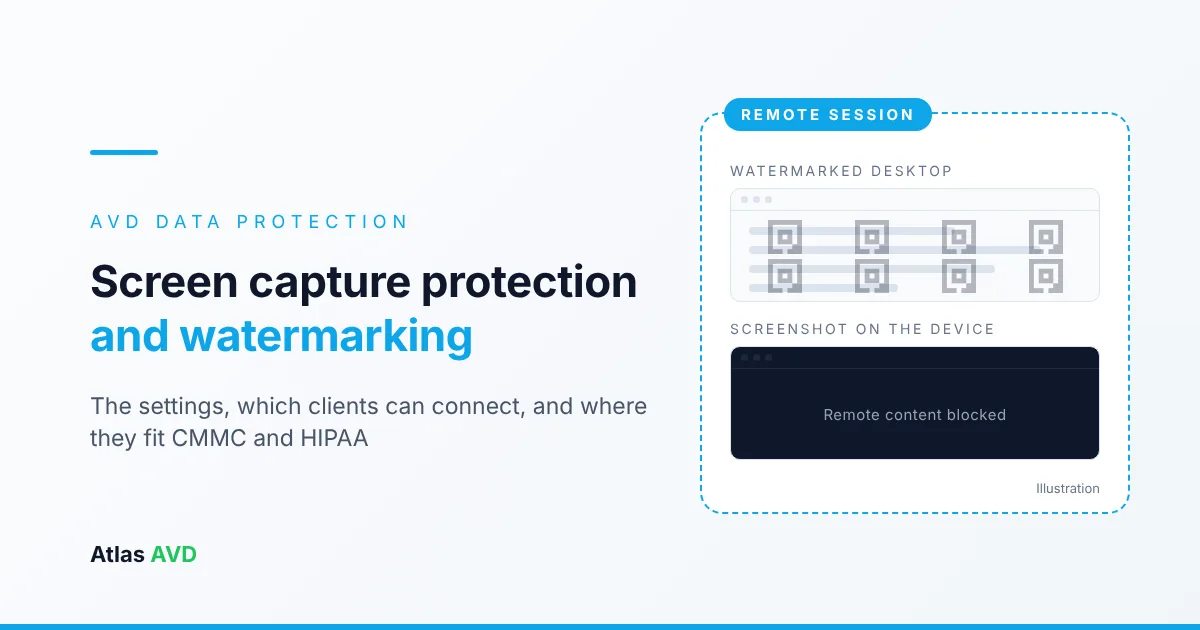
Azure Virtual Desktop (AVD) has two built-in controls against data leaving through the screen: screen capture protection blanks the remote session in screenshots and screen shares, and watermarking overlays QR codes that trace a photo of the screen back to the connection it came from. Both are policies on the session hosts, enforced by Windows App or the Remote Desktop client, and a client that can't enforce them is refused. They're supporting controls for CMMC and HIPAA work, not a substitute for turning off clipboard, drive and printer redirection.
The short version: Turn on Enable screen capture protection and Enable watermarking with Intune or Group Policy, under Remote Desktop Session Host → Azure Virtual Desktop. Before you do, list every client your users connect from. Windows and macOS apps enforce screen capture protection on their own; phones, tablets and browsers need an Intune app protection policy or they can't connect. Watermarking covers full desktops only, not RemoteApp, and it's only traceable while your connection logs still exist.
This guide covers the settings, which clients work, what users notice, and where the two controls fit in a CMMC or HIPAA program. It goes with the wider AVD security checklist. Microsoft details are from Microsoft Learn as of November 2026, with each source linked.
What each control does
| Screen capture protection | Watermarking | |
|---|---|---|
| What it stops | Screenshots, screen recording and screen sharing of the remote session | Nothing. It makes a photo or capture of the screen traceable. |
| What the user sees | Nothing in the session. A capture shows the remote content blocked or hidden. | A grid of faint QR codes over the whole desktop |
| Where it's configured | Session hosts, plus an Intune app protection policy for mobile and web | Session hosts |
| What enforces it | The client app on the user's device | The client app on the user's device |
| Desktop sessions | Yes | Yes |
| RemoteApp sessions | Yes | No. The watermark isn't applied. |
| Clients that can't enforce it | Refused | Refused |
| Applies to Windows 365 | Yes | Microsoft documents it for Azure Virtual Desktop |
The two cover different leaks. Screen capture protection handles software on the user's device: the Print Screen key, a snipping tool, a recording app, a video call that shares the screen. It can't do anything about a phone pointed at the monitor. That's what the watermark is for: it doesn't prevent the photo, but the photo carries the connection it was taken in.
Microsoft says where the limits are. Screen capture protection "doesn't provide Digital Rights Management (DRM)-level protection" and "isn't a substitute for DRM solutions" (screen capture protection). It blocks capture through standard operating system features and APIs. Treat both controls as one layer among several.
Screen capture protection settings
The policy is Enable screen capture protection, and it has two options.
| Option | Blocks capture on the user's device | Blocks capture tools inside the session | Use it when |
|---|---|---|---|
| Block screen capture on client | Yes | No | Users need to share their remote desktop in Teams, or run capture tools inside the session |
| Block screen capture on client and server | Yes | Yes | The session shouldn't be captured by anything, including software running on the session host |
Where to set it. In Intune, create a Settings catalog profile for Windows 10 and later and browse to Administrative templates → Windows Components → Remote Desktop Services → Remote Desktop Session Host → Azure Virtual Desktop. Enable Enable screen capture protection, then use Screen Capture Protection Options (Device) to choose the option. In Group Policy the same setting is under Computer Configuration → Policies → Administrative Templates, on the same path, once you've added Microsoft's administrative template for Azure Virtual Desktop.
What it needs.
- Session hosts running Windows 11, version 22H2 or later, or Windows 10, version 22H2 or later.
- A restart of the session hosts after the policy applies.
- A new session. Users who were signed in have to sign out and back in; reconnecting to an existing session isn't enough.
Client support for screen capture protection
This is the part to plan. Once the policy is on a session host, every connection to that host has to come from a client that can enforce it.
| Client | Can it connect? | What it needs |
|---|---|---|
| Windows App on Windows | Yes | Any version. For RemoteApp, the local device must run Windows 11, version 22H2 or later. |
| Windows App on macOS | Yes | Any version |
| Remote Desktop client for Windows | Yes | Version 1.2.1672 or later. The same Windows 11 rule applies to RemoteApp. |
| Remote Desktop client for macOS | Yes | Version 10.7.0 or later |
| Windows App on iOS and iPadOS | Only with an app protection policy | Windows App 11.2.4 or later, and an Intune app protection policy with Screen capture set to Block |
| Windows App on Android | Only with an app protection policy | Windows App 11.0.0.94 or later, and the same Intune policy |
| Web browser | Only in Microsoft Edge for Business on Windows, with an app protection policy | Edge 134.0.3124.51 or later, a work profile that receives an Intune app protection policy, and a personal device or one managed by another organization |
| ChromeOS and Meta Quest | No | Intune app protection isn't supported on these platforms |
Microsoft calls the mobile and web rows hybrid enforcement: the session host asks for protection, and the connection is allowed only when an Intune mobile application management (MAM) policy on the device also blocks capture. If the policy isn't applied, the connection is blocked. You pair the app protection policy with a Conditional Access policy that requires it. Microsoft's page has the exact settings, including two that are easy to get wrong:
- Keep the web policy separate. The Conditional Access policy for browsers targets the Windows device platform and the Browser client app. Native Windows clients don't support app protection policies, so a policy that covers Windows and Mobile apps and desktop clients blocks them.
- Devices your own tenant manages can't use the browser route. They connect with the installed Windows App instead.
macOS has its own caveat. Microsoft says some native macOS applications "might not fully respect screen capture protection enforcement", because of the operating system's APIs, and recommends Windows endpoints "for highly sensitive content".
A client that isn't supported gets an error that says screen capture protection is enabled. That's clear to you and not to a user, so tell people before you turn it on.
Watermarking settings
Watermarking draws a repeating grid of QR codes over the remote desktop. Each code holds the session's connection ID (or the device ID, if you choose that), so anyone with a photo of the screen can hand it to an administrator, who can look up whose session it was.
The policy is Enable watermarking, in the same folder as screen capture protection. In Intune, don't pick the entry marked [Deprecated] Enable watermarking: Microsoft notes that it has no option for the QR code's content.
| Option | Values | Default | What it changes |
|---|---|---|---|
| QR code bitmap scale factor | 1 to 10 | 4 | The size of each dot in the QR code, so the size of the code |
| QR code bitmap opacity | 100 to 9999 | 2000 | How visible the watermark is. 100 is fully transparent and 9999 is fully opaque. |
| Width of grid box | 100 to 1000 percent | 320 | The horizontal distance between codes |
| Height of grid box | 100 to 1000 percent | 180 | The vertical distance between codes |
| QR code embedded content | Connection ID or Device ID | Connection ID | What the code identifies |
Microsoft's advice is to tune one thing: "We recommend trying out different opacity values to find a balance between the readability of the remote session and being able to scan the QR code, but keeping the default values for the other parameters" (watermarking).
Connection ID or Device ID. Keep Connection ID unless you have a reason not to. Microsoft says to select Device ID only for session hosts in a personal host pool that are joined to Microsoft Entra ID or hybrid joined. On a pooled host, many people share one device, so a device ID wouldn't tell you who was signed in. (Pooled vs personal host pools explains the two models.)
When it takes effect. After Intune syncs or Group Policy refreshes on the hosts, and after users sign out and back in.
Client support for watermarking
| Client | Supported |
|---|---|
| Windows App on Windows, macOS, iOS and iPadOS, and in a web browser | Yes |
| Windows App on Android and ChromeOS | Yes, in preview |
| Remote Desktop client for Windows | Version 1.2.3317 or later, on Windows 10 and later |
| Remote Desktop client for macOS | Version 10.9.5 or later |
| Remote Desktop client for iOS and iPadOS | Version 10.5.4 or later |
| Remote Desktop client in a web browser | Yes |
The rule for unsupported clients is the same as for screen capture protection, with a worse error. Microsoft: "If you try to connect from an unsupported client, the connection will fail and you'll get an error message that is not specific."
Three limits to know before you rely on it:
- RemoteApp isn't watermarked. "With RemoteApp, watermarking is not applied and the connection is allowed." If you publish apps rather than desktops, watermarking does nothing for those sessions.
- Direct RDP isn't watermarked. A connection straight to the session host with Remote Desktop Connection (
mstsc.exe), not through Azure Virtual Desktop, shows no watermark and is allowed. Keep direct RDP to session hosts closed. - A cropped or blurred photo may not scan. A tight crop between codes carries nothing. That's the argument for not making the grid too sparse.
Tracing a watermark back to a session
A QR code gives you a connection ID. Microsoft documents two ways to turn it into a user and a time, and both read your AVD diagnostics.
- Azure Virtual Desktop Insights. Open the host pool, choose the time range, and go to the Connection Diagnostics tab. The connections list shows the first attempt, the connection ID, the user and the number of attempts.
- Log Analytics. Run this in the workspace your host pool sends diagnostics to, with the full or partial value from the code:
WVDConnections
| where CorrelationId contains "<connection ID>"
Two things follow from that:
- Diagnostics have to be on first. Microsoft lists Azure Virtual Desktop Insights as a prerequisite for watermarking. A watermark on a pool that isn't sending connection logs can't be traced.
- Retention is your tracing window. If a photo turns up after the
WVDConnectionsrows have aged out of the workspace, the code is just a number. Set the retention on that table to match how long you need to be able to investigate.
What users notice
| Situation | With screen capture protection | With watermarking |
|---|---|---|
| Working in the session | No change | QR codes over everything, all day |
| Screenshot or recording on their own device | The remote content is blocked or hidden | Works. The capture includes the codes. |
| Capture tool inside the session | Works with the client-only option. Blocked with client and server. | Works |
| Sharing the remote desktop in a Teams meeting | Works with the client-only option on current clients. Older clients share a black screen. | Works. Viewers see the codes. |
| Remote support that views the user's screen | Depends on the tool. Test yours. | Works |
| Connecting from an unsupported client | Refused, with a message about screen capture protection | Refused, with a generic error |
Teams screen sharing is the complaint you'll hear first. Microsoft's position is that with Block screen capture on client, users can still share their screen and apps through the SlimCore-based Teams optimization. It needs Teams 25060.205.3499.6849, and Remote Desktop client 1.2.6081 or Windows App 2.0.379, or later. "Users on lower versions end up sharing a black screen" (new VDI solution for Teams). On macOS, Microsoft warns that screen capture protection "might interfere with screen sharing in Microsoft Teams". Our Teams on AVD guide covers how to check which optimization a session is using.
Watermark fatigue is the second. The codes are faint at the default opacity, but designers, anyone reading dense spreadsheets, and people who present their desktop to customers will object. Scope the watermark to the host pools that hold the data that needs it instead of setting it everywhere.
The help desk needs to know both policies exist. A user who can't connect from a home tablet, or whose support session shows a black window, will open a ticket that says nothing about either policy.
Where they fit in CMMC and HIPAA
Neither framework names screen capture protection or watermarking. Assessors and auditors ask how you control where regulated data can go and how you tie activity to a person, and these two controls are part of that answer. They aren't requirements on their own.
| Framework | Requirement | How the controls help |
|---|---|---|
| CMMC Level 2 (NIST SP 800-171) | 3.1.3: control the flow of CUI in accordance with approved authorizations | Screen capture protection closes the screenshot and screen-share route out of the session, next to the redirection you've turned off |
| CMMC Level 2 (NIST SP 800-171) | 3.3.2: trace the actions of individual users to those users | The watermark's connection ID ties an image to one user's session, as long as the connection logs are kept |
| HIPAA Security Rule | 45 CFR 164.312(b): audit controls | The same link between a leaked image and a recorded session |
| HIPAA Security Rule | 45 CFR 164.310(b) and (c): workstation use and workstation security | A technical safeguard and a visible deterrent on workstations you don't physically control, such as home offices |
The CMMC enclave case. Many contractors use AVD to keep Controlled Unclassified Information (CUI) off laptops, so the laptops stay out of assessment scope. That only holds when the virtual desktop is configured so that nothing beyond keyboard, video and mouse reaches the endpoint. A screenshot saved on the laptop is CUI stored on the laptop. Screen capture protection is the control that addresses it, alongside disabled clipboard, drive, printer and USB redirection. Azure Virtual Desktop in GCC High covers the scoping rule and the rest of the enclave, including a reminder to check that each feature is available in your Government region and with your client.
The HIPAA case. The risk is usually a person at home photographing a patient record. Nothing technical prevents that. A watermark changes the calculation for the person holding the phone, and gives your privacy officer something to investigate. Say so in your workstation use policy, so users know the codes identify their session.
Three things to write down for either framework:
- Which host pools have the controls and why. A policy that says "pools handling CUI" or "pools with ePHI" is easier to defend than a blanket setting with exceptions.
- How a watermark is traced, and for how long. Name the workspace, the retention period and who is allowed to run the lookup.
- What the controls don't cover. RemoteApp sessions aren't watermarked, and a phone camera isn't blocked. An assessor will respect a documented limit more than a claim that the screen is locked down.
If a tool manages these settings for you, it's part of the same story. Your AVD compliance boundary covers what to ask about where that tool runs.
A rollout order that avoids lockouts
- Inventory clients. Pull the client type and version for the last 30 days of connections from
WVDConnections(theClientTypeandClientVersioncolumns). Anything that isn't in the tables above will be refused. - Decide per host pool. Sensitive pools get both controls. General pools may need neither.
- Set up mobile and web first. If phones, tablets or browsers connect to a protected pool, create the Intune app protection policies and the Conditional Access policies before you enable anything on the hosts.
- Pilot on one pool. Use the client-only option to start. Test a screenshot, a Teams share, your remote support tool and every client type you found in step 1.
- Tune the watermark opacity with the people who'll work under it, then confirm a phone photo of the screen still scans.
- Trace one code end to end. Photograph a session, read the code, and find the connection in Insights or Log Analytics. Don't wait for an incident to find out whether it works.
- Tell users and the help desk what the codes are, what a black screenshot means, and which devices can no longer connect.
- Turn off the other routes. Disable or restrict clipboard, drive, printer and USB redirection on the same pools, or the screen was never the easy way out.
How Atlas AVD handles it
Atlas AVD runs in your own Azure tenant and writes these policies onto session hosts for you, from the Settings Matrix. You don't need a separate Intune profile or Group Policy object for the session host side.
- Session Watermarking. A row under Sessions & AVD, off by default. It's set once for the whole deployment or per tenant, and a host pool can override it, so a regulated pool can be watermarked while the rest aren't.
- Watermark Opacity and Watermark Density. Opacity is a percentage from 1 to 100, with a default of 20, which is Microsoft's default of 2000. Density is the QR code scale factor from 1 to 10, with a default of 4. Both follow the same levels and can differ per host pool.
- Enable screen capture protection. A row under Session Host Policies, with the same three choices as Microsoft's policy: Disabled, Block screen capture on client and Block screen capture on client and server. It follows Global → Tenant → Host Pool.
- Snipping Tool Allowed. Turn it off for a pool, and Atlas removes the Windows Snipping Tool from that pool's new and reimaged hosts.
When each one reaches a host:
| Setting | New and reimaged hosts | Hosts that are already running |
|---|---|---|
| Session Watermarking, Watermark Opacity, Watermark Density | Written when the host is built | Keep the values they were built with until they're reimaged |
| Enable screen capture protection | Written when the host is built | Updated when an administrator chooses Apply to session hosts |
| Snipping Tool Allowed | Applied when the host is built | Not changed |
What Atlas doesn't do, so you can plan for it:
- It doesn't create the Intune app protection policies that phones, tablets and browsers need. Set those up in Intune, with the Conditional Access policy that requires them.
- It doesn't set the watermark's grid width and height or the QR code's content. Hosts use Microsoft's defaults, so the code holds the connection ID.
- It doesn't read QR codes. Look the connection ID up in Azure Virtual Desktop Insights or Log Analytics. Log Analytics Integration turns on the host pool diagnostics that the lookup depends on.
- It doesn't change which clients can connect. Microsoft's client rules above apply to hosts that Atlas builds.
If you're working toward CMMC: Atlas' compliance baselines, Security Hardening Modules, are coming soon to GCC High and aren't available today. The settings above don't depend on them.
See it on your own environment. Start a free 30-day trial, then open the Settings Matrix and search for "watermark" to see the value in effect for every tenant and host pool.
FAQ
Does Azure Virtual Desktop have watermarking?
Yes. Azure Virtual Desktop watermarking overlays QR codes on the remote desktop that contain the session's connection ID or device ID. You enable it on session hosts with the Enable watermarking policy in Intune or Group Policy, and Windows App or the Remote Desktop client draws it.
How do I block screenshots in Azure Virtual Desktop?
Enable the screen capture protection policy on your session hosts with Intune or Group Policy, then restart the hosts. Choose Block screen capture on client to stop captures on the user's device, or Block screen capture on client and server to also stop capture tools inside the session. Remote content is then blocked or hidden in screenshots and screen shares.
What is the difference between screen capture protection and watermarking?
Screen capture protection prevents software on the user's device from capturing the remote session. Watermarking doesn't prevent anything: it adds QR codes so that a photo taken with a phone or camera can be traced to the session it came from. They're meant to be used together.
Which clients support screen capture protection in AVD?
Windows App and the Remote Desktop client on Windows and macOS enforce it on their own. Windows App on iOS, iPadOS and Android, and Microsoft Edge for Business on Windows, can connect only when an Intune app protection policy that blocks screen capture applies. Other clients, including ChromeOS and Meta Quest, are refused.
Does AVD watermarking work with RemoteApp?
No. Microsoft states that watermarking is for remote desktops only. With RemoteApp, the watermark isn't applied and the connection is allowed. Screen capture protection does support RemoteApp sessions.
How do I trace an AVD watermark QR code to a user?
Scan the QR code to get the connection ID, then find it on the Connection Diagnostics tab in Azure Virtual Desktop Insights, or query the WVDConnections table in Log Analytics for a matching CorrelationId. This only works while the connection logs are still within your workspace's retention period.
Can users still share their screen in Teams with screen capture protection on?
Yes, with the Block screen capture on client option and current clients. Microsoft requires the SlimCore-based Teams optimization, Teams 25060.205.3499.6849 or later, and Remote Desktop client 1.2.6081 or Windows App 2.0.379 or later. Older versions share a black screen.
Does CMMC or HIPAA require AVD watermarking?
No. Neither framework names watermarking or screen capture protection. They support requirements such as controlling the flow of CUI and tracing actions to individual users under NIST SP 800-171, and audit controls and workstation security under the HIPAA Security Rule.
Last updated 11 November 2026. Microsoft details are drawn from Microsoft Learn as of November 2026: Enable screen capture protection in Azure Virtual Desktop and Windows 365, Watermarking in Azure Virtual Desktop and New VDI solution for Teams. Client versions change often, so check those pages before you enable either policy.