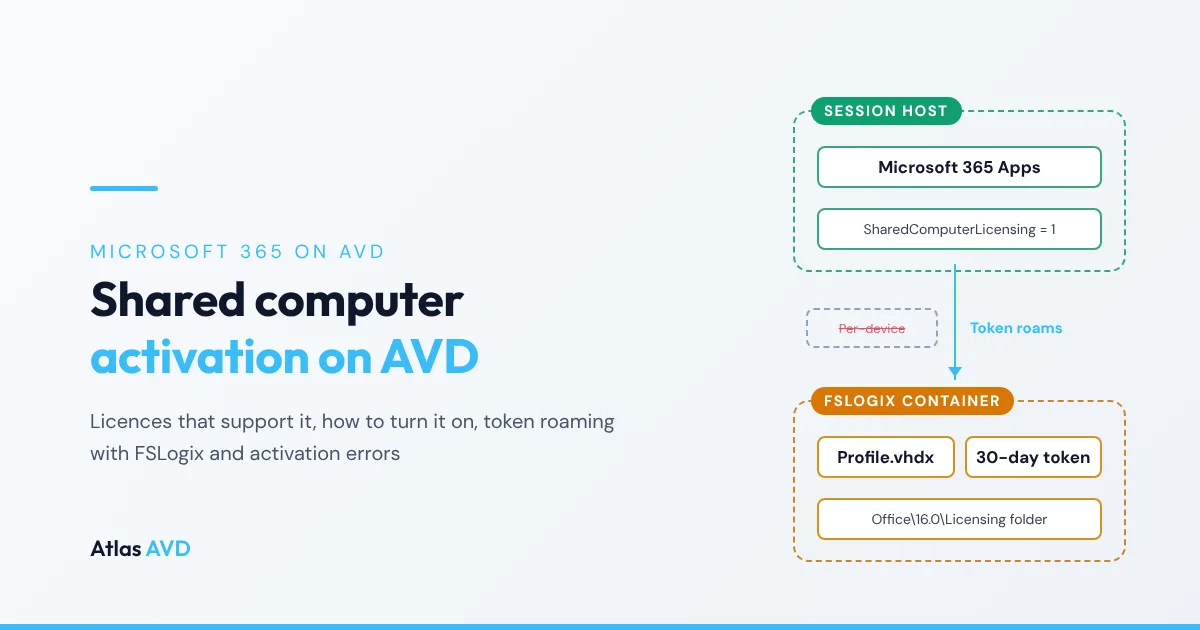
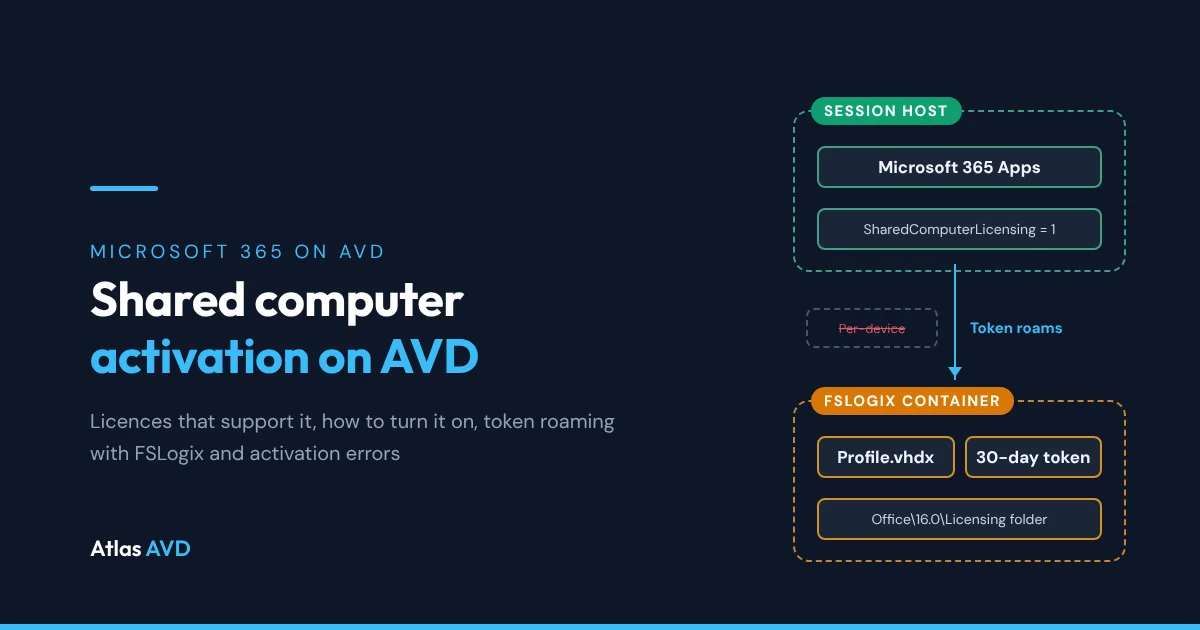
Shared computer activation lets Microsoft 365 Apps activate per user rather than per device, and Azure Virtual Desktop (AVD) multi-session hosts need it because many users sign in to the same VM. Turn it on with SharedComputerLicensing=1 in the Office Deployment Tool XML, the "Use shared computer activation" policy, or the registry, and keep each user's licensing token in their FSLogix profile container so it follows them between pooled hosts.
The short version: install Microsoft 365 Apps with
<Property Name="SharedComputerLicensing" Value="1" />, or start from Microsoft's Windows Enterprise multi-session image with Microsoft 365 Apps. Every user needs a licence that supports shared computer activation: an enterprise plan, or Microsoft 365 Business Premium. Let FSLogix roam%localappdata%\Microsoft\Office\16.0\Licensing, and don't exclude it.
Why multi-session hosts need shared computer activation
Normally Microsoft 365 Apps activates per device, and each user can activate it on a limited number of devices, such as five PCs. That model breaks on a multi-session host, where dozens of people use one installation at the same time, and on a pooled host pool, where the same person lands on a different VM every day.
With shared computer activation, Office instead gets a licensing token for each user from the Office Licensing Service when that user first opens an Office app. The token is stored in the user's profile, and activations on shared computers don't count against the user's device limit (Microsoft Learn: overview of shared computer activation).
| Per-device activation | Shared computer activation | |
|---|---|---|
| Who activates | The first user, for the device | Each user, for themselves |
| Counts against the user's device limit | Yes | No |
| Where the licence lives | On the machine | A licensing token in the user's profile |
| Token lifetime | Not applicable | 30 days, renewed automatically while the user works |
| Right for | A PC one person uses | Multi-session hosts, pooled host pools, RDS and shared PCs |
Microsoft's AVD guidance supports only two Office versions on Windows 10 and Windows 11 Enterprise multi-session: Microsoft 365 Apps for enterprise, and Microsoft 365 Apps for business that comes with Microsoft 365 Business Premium (Install Office on a custom VHD image).
Which licences support it
| Plan | Shared computer activation |
|---|---|
| Any plan with Microsoft 365 Apps for enterprise (Office 365 E3, Microsoft 365 E3 and E5, Education A3 and A5) | Yes |
| Microsoft 365 Business Premium | Yes, the only business plan that does |
| Microsoft 365 Business Standard, Microsoft 365 Apps for business on its own | No |
| Plans with the desktop Project or Visio apps (Project Plan 3, Visio Plan 2) | Yes, for those apps |
Assign the licence to every user who opens Office on the hosts. A user without one sees Office in reduced functionality mode: they can view and print documents but not create or edit them.
How to enable shared computer activation
There are four common ways, and you only need one. If Office is already installed, a policy or registry change is enough, with no reinstall, but the host must restart before it applies.
| Method | Where it's set | Best for |
|---|---|---|
| Office Deployment Tool | <Property Name="SharedComputerLicensing" Value="1" /> in configuration.xml | Building a golden image |
| Group Policy | Computer Configuration → Administrative Templates → Microsoft Office 2016 (Machine) → Licensing Settings → Use shared computer activation | Domain-joined hosts with Microsoft 365 Apps for enterprise |
| Intune Settings Catalog | Microsoft Office 2016 (Machine) → Licensing Settings → Use shared computer activation | Entra-joined hosts managed by Intune |
| Registry | HKLM\SOFTWARE\Microsoft\Office\ClickToRun\Configuration, string SharedComputerLicensing = 1 | Scripts, or Microsoft 365 Apps for business |
Microsoft 365 Apps for business (Business Premium) doesn't support turning it on through Group Policy. Use the Office Deployment Tool or the ClickToRun registry value for those installs.
The Office Deployment Tool XML
This is the shape Microsoft's AVD guidance uses: 64-bit, Monthly Enterprise Channel, automatic updates off so Office is updated with the image, and Teams and OneDrive left out so you can install them the VDI way.
<Configuration>
  <Add OfficeClientEdition="64" Channel="MonthlyEnterprise">
    <Product ID="O365ProPlusRetail">
      <Language ID="en-US" />
      <ExcludeApp ID="Groove" />
      <ExcludeApp ID="Lync" />
      <ExcludeApp ID="OneDrive" />
      <ExcludeApp ID="Teams" />
    </Product>
  </Add>
  <RemoveMSI />
  <Updates Enabled="FALSE" />
  <Display Level="None" AcceptEULA="TRUE" />
  <Property Name="FORCEAPPSHUTDOWN" Value="TRUE" />
  <Property Name="SharedComputerLicensing" Value="1" />
</Configuration>
Run setup.exe /configure configuration.xml in the image VM. In the Office Customization Tool, the same switch is Shared Computer under Product activation. Install OneDrive per machine afterwards, as OneDrive on AVD multi-session explains.
Or start from Microsoft's image
Microsoft publishes Windows 11 Enterprise multi-session images with Microsoft 365 Apps already installed, and its AVD guidance suggests them as the alternative to installing Office yourself. Check activation on the first host you build from one, the same way you would for your own image (see How to check it's working below).
If a user activated before you turned it on
Changing the setting doesn't convert activations that already happened. If a user activated Office on the host before shared computer activation was enabled, reset their activation state, or rebuild the host from the corrected image, before it works for them.
The licensing token and FSLogix
Each user's token lives in %localappdata%\Microsoft\Office\16.0\Licensing by default. It's valid for 30 days, and Office renews it automatically as it nears expiry while the user is signed in and using Office. If it does expire, Office asks the Office Licensing Service for a new one the next time the user opens an app, so the host needs reliable internet access.
On a pooled host pool, where that folder ends up matters:
| Setup | What users experience |
|---|---|
| FSLogix profile container | The whole profile, AppData\Local included, is in the user's VHDX, so the token comes back on every host |
| FSLogix Office (ODFC) container | IncludeOfficeActivation (default 1) keeps activation data in the Office container |
Licensing folder excluded in redirections.xml | Token is lost at sign-out, and Office activates again on every host |
| No profile solution on pooled hosts | Activation on every sign-in, and more chance of the "too many computers" limit |
So with FSLogix, token roaming needs no extra setting: just don't exclude the Licensing folder. If you trim profiles with FSLogix exclusions in redirections.xml, check that no broad AppData\Local\Microsoft\Office entry catches it.
Without FSLogix, Microsoft 365 Apps (Version 1704 and later) can save the token to another folder that's unique to each user. Set Specify the location to save the licensing token used by shared computer activation under the same Licensing Settings policy node, or SCLCacheOverride = 1 and SCLCacheOverrideDirectory in the ClickToRun configuration key. Microsoft warns that a network folder can slow down how long Office takes to open.
Single sign-on helps too. When users sign in to the session host with the same identity Microsoft 365 uses, Office activates with those credentials and rarely shows the Activate Office prompt.
How to check it's working
- In Office: open Word, go to File → Account → About Word. The second line shows Shared Computer Activation instead of a Product ID.
- In the registry:
HKLM\SOFTWARE\Microsoft\Office\ClickToRun\ConfigurationhasSharedComputerLicensingset to1. - For a user: after they open an Office app,
%localappdata%\Microsoft\Office\16.0\Licensingcontains licence files. Don't edit them.
Troubleshooting activation errors on AVD
| Message the user sees | What it means | Fix |
|---|---|---|
| "The products we found in your account cannot be used to activate Office in shared computer scenarios." | The user's plan doesn't support shared computer activation (Business Standard, for example) | Assign an enterprise plan or Business Premium |
| "UNLICENSED PRODUCT Most features are turned off because a shared computer license isn't available." | No token was obtained; Office is in reduced functionality mode | Check the user has a Microsoft 365 Apps licence, signs in at the Activate Office prompt, and that the host can reach the internet |
| "Sorry, we cannot verify the license currently installed for this product." | The user's stored token is damaged or doesn't match | Have the user sign in to Office again to get a new token; reset their activation if it persists |
| "PRODUCT NOTICE Your shared computer license expires on [date] and we're having trouble renewing it." | Automatic renewal failed, usually for lack of internet access | Office keeps working until that date; fix outbound access, then choose Renew |
| "Sorry, this Office 365 account has recently been used to activate too many computers." | The user activated on too many shared computers in a short period | Roam the token with FSLogix so pooled hosts reuse it, and check the Licensing folder isn't excluded |
| Office shows a Product ID and asks every user to activate | Shared computer activation was never turned on for that install | Set it by policy or registry and restart the host, or rebuild from a corrected image |
Users activating again every morning on a pooled host pool is almost always a roaming problem, not a licensing one: the profile container isn't attaching, or the Licensing folder is being thrown away. FSLogix troubleshooting covers containers that fail to attach. If Outlook is also rebuilding its cache every day, the same root cause applies; see Outlook cached mode on AVD.
Where Atlas AVD helps
- Images with Microsoft 365 Apps. When you deploy session hosts, the image picker groups Microsoft's Windows 11 images into Multi-session (pooled), Multi-session + Microsoft 365 Apps and Single-session (personal), so you can start from Microsoft's multi-session image with Office already installed.
- The policy, set once and inherited. In the Settings Matrix, under Windows Settings → Session Host Policies → Microsoft 365 Apps → Licensing Settings, the Use shared computer activation row writes the same machine policy as the Office administrative template. Set it at Global, for one tenant, or for one host pool. New and reimaged session hosts receive it automatically, and Apply to session hosts updates the hosts that are already running.
- Office activation data in the Office container. If you split Office data into an ODFC container, the FSLogix → Office Containers rows in the same category include Include Office activation data in container.
That's the real Atlas AVD console in our demo environment. Atlas's row is the Group Policy setting, which Microsoft 365 Apps for business doesn't honour, so on Business Premium set SharedComputerLicensing in your Office Deployment Tool XML or start from Microsoft's Microsoft 365 Apps image. Atlas doesn't assign Microsoft 365 licences: do that in the Microsoft 365 admin center.
FAQ
Do I need shared computer activation on Azure Virtual Desktop?
Yes, on any multi-session host pool, and on any host more than one user signs in to. Without it Office activates per device and counts against each user's device limit, which doesn't fit many users sharing one VM.
Which Microsoft 365 licences support shared computer activation?
Plans that include Microsoft 365 Apps for enterprise, such as Microsoft 365 E3 and E5 or Office 365 E3 and A3, plus Microsoft 365 Business Premium. Microsoft 365 Business Standard doesn't, even though it includes the desktop apps.
How do I enable shared computer activation after Office is installed?
Set the Use shared computer activation policy, or add the string value SharedComputerLicensing = 1 under HKLM\SOFTWARE\Microsoft\Office\ClickToRun\Configuration, then restart the host. No reinstall is needed. For Microsoft 365 Apps for business, use the registry value, not Group Policy.
How long does the shared computer activation token last?
30 days. Office renews it automatically as it nears expiry while the user is signed in and using Office. If it expires, Office gets a new one the next time the user opens an app, as long as the host can reach the internet.
Does the licensing token roam with FSLogix?
Yes. The token is stored in %localappdata%\Microsoft\Office\16.0\Licensing, which is inside the FSLogix profile container, so it follows the user to any host. Don't exclude that folder in redirections.xml.
Why do users have to activate Office every day on AVD?
Usually because the licensing token doesn't survive sign-out: the FSLogix container isn't attaching, or the Licensing folder is excluded. Less often, shared computer activation isn't enabled on that image and Office is activating per device.
Last updated 19 November 2026. Microsoft details are drawn from Microsoft Learn as of November 2026: Overview of shared computer activation for Microsoft 365 Apps, Troubleshoot shared computer activation, Install Office on a custom VHD image and the FSLogix configuration settings reference.