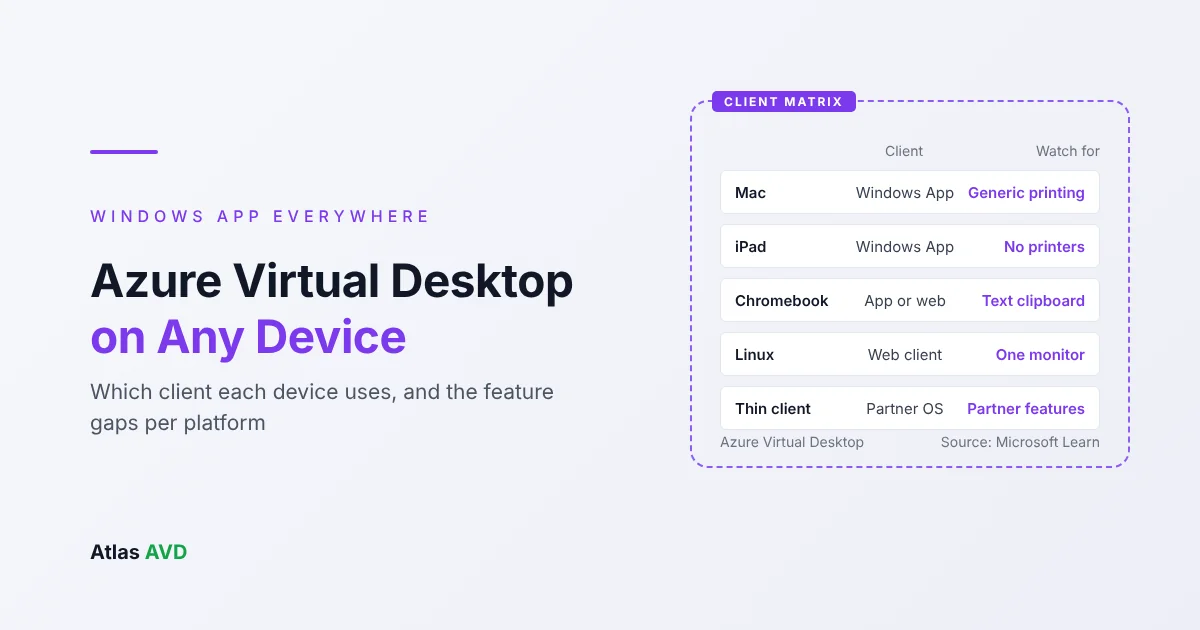
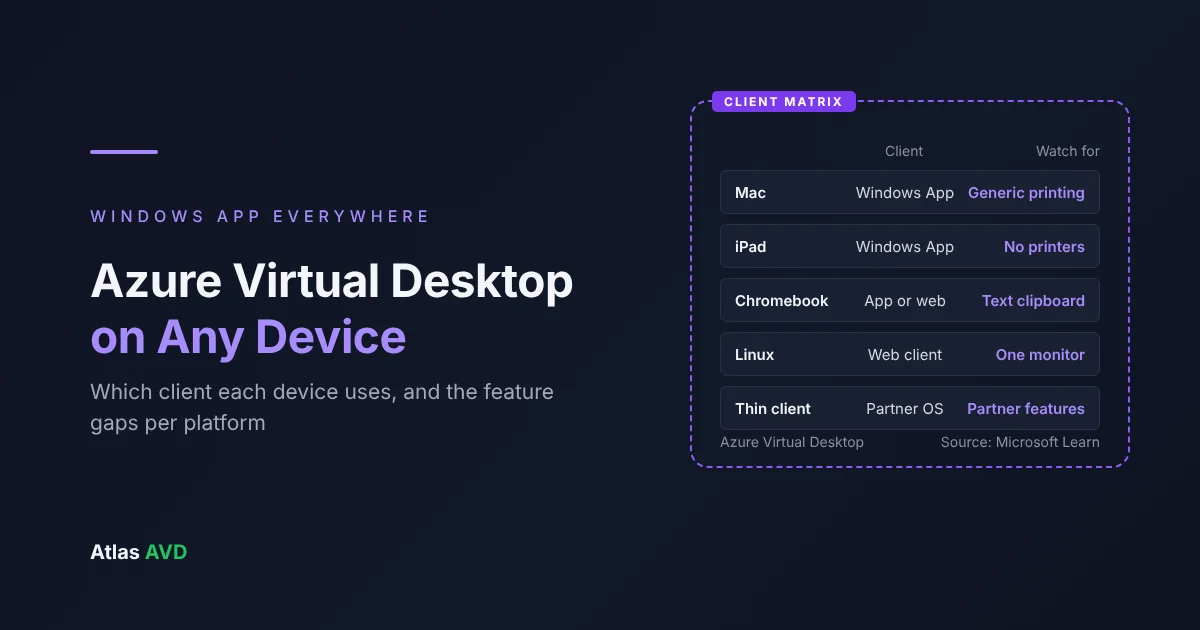
Yes: Azure Virtual Desktop (AVD) works on a Mac, iPad, Android tablet, Chromebook, Linux PC or thin client. Install Windows App from the Mac App Store, the App Store or Google Play, open the web client at windows.cloud.microsoft in a browser on Linux, or buy a thin client from one of Microsoft's approved partners. The remote desktop is the same on all of them; what changes is what the device can bring into the session, and Windows is the only platform with every feature.
The short version: Windows App runs on Windows, macOS, iOS and iPadOS, Android and ChromeOS, and the web client covers Linux and any desktop browser. Mac is closest to Windows: multiple monitors, Teams optimization, smart cards and integrated RemoteApp windows all work, but printing uses one generic driver and USB devices can't be redirected. iPad and Android get Teams optimization and cameras, but no printer redirection and only one screen. The web client needs nothing installed, but has one monitor, a text-only clipboard, file upload and download instead of drive mapping, and no Teams media optimization. Multimedia redirection, USB and serial ports, TWAIN scanners and third-party virtual channels are Windows-only. Thin clients run the partner's own client, so check the partner's feature list, not Microsoft's.
Last updated 17 November 2026. Platform support is from Microsoft Learn's Windows App feature comparison (updated 12 November 2026) and the thin client and prerequisites pages as of November 2026, with each source linked below.
This guide is vendor-neutral until the section on where Atlas AVD fits. If you're still working out how host pools, application groups and workspaces fit together, start with What Is Azure Virtual Desktop?
1. Which client to use on each device
Microsoft's client for Azure Virtual Desktop is Windows App. It replaced the Microsoft Remote Desktop app on macOS, iOS and Android, and on Windows it replaces the Remote Desktop client (MSRDC), which reached end of support on 27 March 2026. The old Remote Desktop Connection (mstsc) can't connect to AVD at all.
| Device | Client | Where to get it | Minimum version |
|---|---|---|---|
| Windows PC | Windows App | Microsoft Store, or deploy it with Intune or your software tool | Windows 11, or Windows 10 1809 and later (out of mainstream support only with Extended Security Updates); Windows Server 2019 and later |
| Mac | Windows App | Mac App Store | macOS 12.0 or later |
| iPad and iPhone | Windows App | App Store | iOS or iPadOS 17.0 or later |
| Android phone or tablet | Windows App | Google Play | Android 10 or later |
| Chromebook | Windows App (the Android app), or the web client | Google Play on the Chromebook, or a browser | ChromeOS 126 or later |
| Linux PC | The web client | A supported browser (table below) | No install |
| Thin client | The partner's client, or the web client | Built into the device's operating system | Set by the partner |
Microsoft requires the device itself to be "actively supported by the device manufacturer", and users can't sign in to Windows App with a personal Microsoft account. They sign in with their work account in Microsoft Entra ID.
The web client
The web client is Windows App in a browser, at https://windows.cloud.microsoft/. Nothing is installed, which makes it the default for Linux, for locked-down machines and for a contractor's laptop you don't manage.
| Browser | Platforms | Minimum version |
|---|---|---|
| Microsoft Edge | Windows, macOS, Linux, ChromeOS | 131 |
| Google Chrome | Windows, macOS, Linux, ChromeOS | 130 |
| Apple Safari | macOS | 18 |
| Mozilla Firefox | Windows, macOS, Linux | 128 |
The browser must also be no more than 12 months old, support the AVC (H.264) codec and have WebGL turned on. Mobile browsers aren't supported, so on an iPad or Android tablet users need the app.
2. What works on which platform
This is the table to read before you promise anyone a Mac or a Chromebook. It's condensed from Microsoft's Windows App feature comparison for Azure Virtual Desktop. "Preview" means Microsoft lists the feature as in preview on that platform.
| Feature | Windows | macOS | iOS and iPadOS | Android and ChromeOS | Web browser |
|---|---|---|---|---|---|
| Teams media optimization (WebRTC) | Yes | Yes | Yes | Yes | No |
| Teams media optimization (SlimCore, the new VDI solution) | Yes | Yes | No | No | No |
| Multimedia redirection (video playback and calls) | Yes | No | No | No | No |
| Multiple monitors | Yes | Yes | No (one external display) | ChromeOS only | No |
| Dynamic resolution | Yes | Yes | No | No | Yes |
| RemoteApps as local windows | Yes | Yes | No | No | No |
| Cameras | Yes | Yes | Yes | Yes | Preview |
| Microphones and speakers | Yes | Yes | Yes | Yes | Yes |
| Local drives and storage | Yes | Yes | Yes | Yes | Upload and download only |
| Printers | Yes | Generic driver only | No | No | Yes |
| Scanners (TWAIN) | Preview | No | No | No | No |
| Smart cards | Yes | Yes | YubiKey only, preview | No | No |
| USB and serial ports | Yes | No | No | No | No |
| Clipboard | Yes | Yes | Text and images | Text only | Text only |
| Location | Windows 11 only | No | Yes | Yes | Yes |
| Passkeys inside the session (WebAuthn) | Yes | Preview | Preview | Preview | No |
| Third-party virtual channel plugins | Yes | No | No | No | No |
| Multi-touch | Yes | No | Yes | Yes | No |
| Pen | Yes | No | Yes | Yes | Yes |
Three rows cause most of the support tickets:
- USB devices. Only Windows redirects arbitrary USB devices. On every other platform a USB device works only if it fits a class that's redirected another way: a camera, a microphone, a drive or a smart card. Signature pads, label printers on USB, dictation foot pedals and barcode scanners that aren't keyboards need a Windows device.
- Printing. Windows App on macOS prints through one generic PostScript driver, Publisher Imagesetter, using the Mac's CUPS printers; native printer drivers aren't supported. iPad and Android don't redirect printers at all. If users print from those devices, print from the session to a network or cloud printer instead: Azure Virtual Desktop printing without a print server covers the options.
- Teams. Calls on the web client aren't media-optimized, so audio and video run on the session host, which costs CPU and quality. Mac users get the new SlimCore-based optimization; iPad and Android users get the WebRTC-based one. Teams on Azure Virtual Desktop explains the two and how to check which one a session is using. Multimedia redirection, for browser video and calls, needs a Windows client.
Everything here is a ceiling, not a default. Each redirection also has to be allowed on the host pool and session host, and the most restrictive setting wins: if the host pool turns drive redirection off, no client gets it. Microsoft's advice is to consider alternatives, such as one-way clipboard rules or Universal Print, before you turn on drive, clipboard, printer and USB drive redirection, so open them per host pool for the users who need them, not everywhere.
3. Mac
Windows App on macOS is the closest to the Windows experience. Users get multiple monitors, dynamic resolution, smart cards, both Teams optimizations and RemoteApps that open as their own Mac windows. What to plan for:
- Printing. The generic Publisher Imagesetter driver handles most office printing. Anything that needs a printer's own driver (trays, finishing, label stock) won't work through redirection. A cloud print service or network printers mapped inside the session are the usual fix.
- USB. There's no USB redirection on macOS. Test every USB peripheral before you roll out.
- Keyboard. Mac and Windows shortcuts differ, so tell users before day one which keys do what in the session. It's the first question you'll get.
- Screen capture protection. Windows App on macOS enforces it, but Microsoft warns that some native macOS apps "might not fully respect" it and recommends Windows endpoints for the most sensitive content. Screen capture protection and watermarking in AVD covers the details.
- Clipboard direction. macOS is the one platform where Windows App supports one-way clipboard rules natively. Elsewhere it's set on the session host.
4. iPad and iPhone
An iPad with a keyboard and trackpad is a good AVD device for people who mostly read, type and join meetings. Windows App supports touch, pen, mouse and trackpad, cameras and microphones, and the WebRTC-based Teams optimization.
- One screen. No multiple monitors. An iPad can drive one external display, and Windows App on iPadOS can choose which display to use.
- No printer redirection. Print from the session to a network or cloud printer.
- Smart cards are in preview and limited to YubiKey, because of iPadOS restrictions.
- Files. Local storage is redirected, so users can open files from the iPad in the session, within what iPadOS lets an app share.
- Screen capture protection connects only when an Intune app protection policy on the device blocks screen capture. Without one, an iPad is refused by a host pool that has screen capture protection turned on.
5. Chromebook
A Chromebook has two ways in, and they behave differently.
| Windows App (Android app) | Web client in Chrome | |
|---|---|---|
| Install | Google Play, on ChromeOS 126 or later | None |
| Multiple monitors | Yes, on ChromeOS | No |
| Teams media optimization | WebRTC-based | No |
| Printing | No redirection | Yes |
| Files | Local storage redirected | Upload and download |
| Clipboard | Text only | Text only |
| Screen capture protection | Refused | Refused |
Use the Android app for people who live in Teams or work across two screens, and the web client where you can't install apps or need printing. Either way, ChromeOS can't satisfy screen capture protection, because Intune app protection isn't supported there, so keep Chromebook users on host pools that don't enforce it.
6. Linux
Microsoft doesn't publish Windows App for Linux. A Linux PC connects through the web client in Edge, Chrome or Firefox, with the web client's limits: one monitor, upload and download instead of drive mapping, a text-only clipboard and no Teams media optimization.
For more than that, the route is a thin client operating system. Several of the partners below sell their operating system to install on existing PCs as well as on their own hardware, which is a common way to keep old desktops in service as AVD endpoints. Open-source RDP clients aren't on Microsoft's supported list for AVD, so if you use one, you're on your own when something breaks.
7. Thin clients
Microsoft lists these partners as having thin client devices approved for Azure Virtual Desktop and Windows 365:
| Partner | Operating system or product line |
|---|---|
| 10ZiG | 10ZiG clients |
| Dell | Dell ThinOS |
| HP | HP thin clients |
| IGEL | IGEL OS |
| NComputing | NComputing clients |
| PRAIM | ThinOX |
| Citrix UniconOS | eLux and Scout |
A thin client can also use the web client in its browser. Two things to know before you buy:
- Features come from the partner, not from Microsoft's table. A partner's client implements AVD itself, so its support for Teams optimization, multiple monitors, USB redirection, printing and smart cards is on the partner's feature list for the exact model and OS version. Test Teams calls, printing and every USB device on the model you'll buy, before you buy in volume.
- Support starts with Windows App. Microsoft says that if you hit a problem on a partner thin client, first try to reproduce it with Windows App. If it doesn't happen there, it's the partner's to fix.
The economics, thin clients against a laptop refresh against BYOD, are in Azure Virtual Desktop ROI.
8. Choosing a client by user
| User | Best fit | Why |
|---|---|---|
| Office worker on a company Mac | Windows App on macOS | Two screens, Teams optimization, RemoteApps as Mac windows |
| Manager on an iPad | Windows App on iPadOS, with an Intune app protection policy | Touch and trackpad, Teams optimization, and BYOD controls |
| Front desk, shared or kiosk seat | A partner thin client | No local data, long service life, managed centrally by the partner's tool |
| Developer or engineer on Linux | Web client, or a partner OS on the PC | No Microsoft app for Linux |
| School or field staff on Chromebooks | Windows App for Android, or the web client | Choose by Teams and printing needs (section 5) |
| Contractor on an unmanaged laptop | Web client, on a host pool with drive and clipboard redirection off | Nothing to install, and nothing leaves the session |
| Anyone with a USB device that isn't a camera, mic, drive or smart card | Windows App on Windows | The only USB redirection |
A few settings make the mix safer, whatever devices you allow:
- Require multifactor authentication and Conditional Access for the Azure Virtual Desktop app, with device compliance for managed devices.
- Use Intune app protection policies on personal iPads and Android devices, to control clipboard, drive and printer redirection from the device side and to satisfy screen capture protection.
- Separate host pools by trust level. Turn on drive and clipboard redirection only in the pool that serves managed devices.
- Allow UDP. RDP Shortpath gives every client a smoother session than the TCP fallback, especially on Wi-Fi and home broadband.
- Pilot on each device type with real users, real peripherals and a Teams call, before you announce support for it. If a device can't connect at all, AVD connection errors lists the common causes.
9. Where Atlas AVD fits
Atlas AVD runs in your own Azure subscription and manages the session hosts behind every client. Atlas doesn't replace Windows App or the web client: users keep connecting the way Microsoft supports. What it adds is a view of which clients people actually use and one place to set what each host pool allows.
See what your users connect from. Open a user from User Sessions (Manage User Sessions), and their Connection History lists each recent connection with the client, its operating system and version, the IP address and the transport, TCP or UDP. It's a quick way to find who is still on the web client or an outdated app before you turn on screen capture protection or change a redirection setting. Connection details come from AVD Insights, so turn on its diagnostic settings for your host pools first.
Every RDP property in one editor. In a host pool's settings, RDP Properties lists every Azure Virtual Desktop RDP property the pool can carry, device redirection, display and connection, with a filter for the ones that are set and an editor for each value. That's where you turn drive, clipboard, printer and camera redirection on or off per host pool, without hand-editing the custom RDP property string in the Azure portal.
Monitors and Teams per pool. Use All Monitors spans sessions across the user's monitors for clients that support it, and WebRTC Redirector Service installs Microsoft's service for Teams media optimization on new session hosts. Both inherit a global default that you can override per host pool.
FAQ
Can I use Azure Virtual Desktop on a Mac?
Yes. Install Windows App from the Mac App Store on macOS 12.0 or later and sign in with your work account. Multiple monitors, Teams media optimization, smart cards and RemoteApps as Mac windows all work. Printing uses a generic driver, and USB devices can't be redirected unless they're a camera, microphone, drive or smart card.
Is there an Azure Virtual Desktop client for Linux?
No. Microsoft doesn't publish Windows App for Linux. Use the web client at windows.cloud.microsoft in Edge, Chrome or Firefox, or a thin client operating system from one of Microsoft's approved partners, some of which install on existing PCs.
Does Azure Virtual Desktop work on a Chromebook?
Yes, two ways. Install Windows App from Google Play on ChromeOS 126 or later, which supports multiple monitors and Teams media optimization, or use the web client in Chrome, which supports printing but not Teams optimization. Neither can connect to a host pool that enforces screen capture protection.
Can I use Azure Virtual Desktop on an iPad?
Yes, with Windows App from the App Store on iPadOS 17.0 or later. It supports touch, pen, keyboard, mouse and trackpad, cameras and Teams media optimization. It doesn't redirect printers or use more than one external display, and smart cards are limited to YubiKey, in preview.
What features does the AVD web client not support?
The web client has no multiple monitors, no Teams media optimization, no multimedia redirection, no smart cards and no USB redirection. Files move by upload and download instead of drive mapping, and the clipboard is text only. It does print, and needs nothing installed.
Which thin clients work with Azure Virtual Desktop?
Microsoft approves thin clients from 10ZiG, Dell, HP, IGEL, NComputing, PRAIM and Citrix UniconOS. Each partner's client sets its own feature support, so check Teams optimization, multiple monitors, USB and printing for the exact model. A thin client can also use the web client in its browser.
Does the Remote Desktop client still work with AVD?
The Remote Desktop client for Windows (MSRDC) reached end of support on 27 March 2026, and Windows App replaces it on every platform. The old Remote Desktop Connection (mstsc) has never connected to Azure Virtual Desktop.
Sources
- Microsoft Learn: Compare Windows App features across platforms and devices
- Microsoft Learn: Get started with Windows App to connect to devices and apps
- Microsoft Learn: Connect to Windows 365 and Azure Virtual Desktop with thin clients
- Microsoft Learn: Redirection over the Remote Desktop Protocol
- Microsoft Learn: Redirect local devices, audio and folders in Windows App
- Microsoft Learn: Screen capture protection in Azure Virtual Desktop
- Microsoft Learn: DS Shortpath (RDP Shortpath) for Azure Virtual Desktop
- Windows IT Pro Blog: Prepare for the Remote Desktop client for Windows end of support