Plenty of organizations bought their domain at GoDaddy years ago and never moved the DNS. That works, but it means the records your Microsoft 365 mail, Teams, Intune and websites depend on live in a different console, with different sign-ins and no audit trail alongside the rest of your Azure estate.
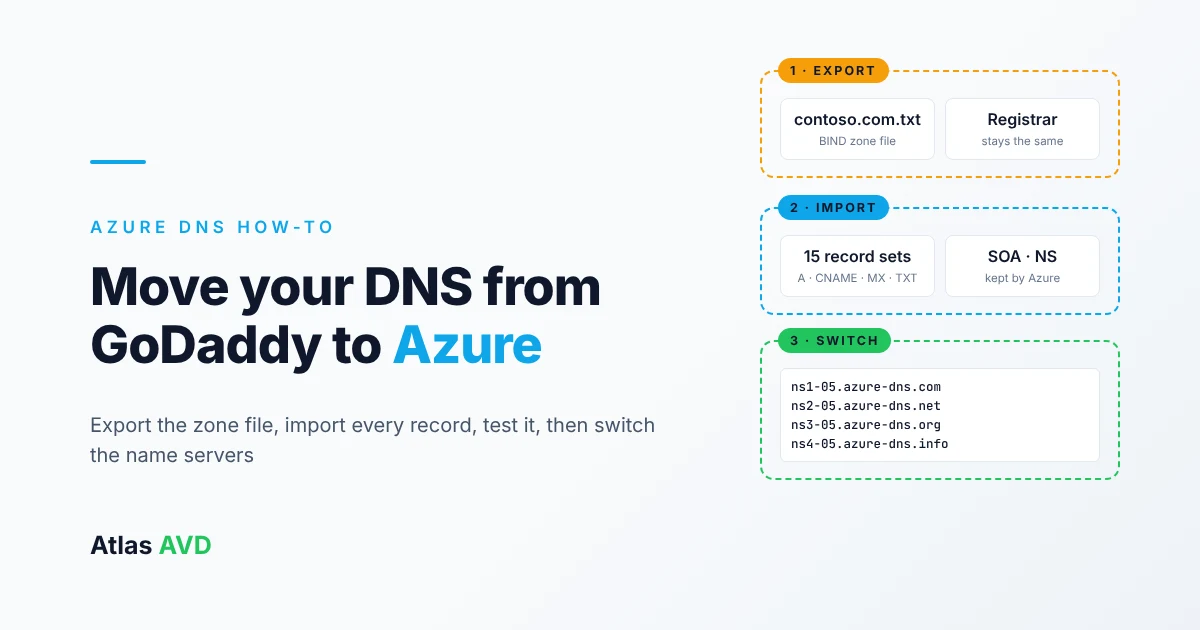
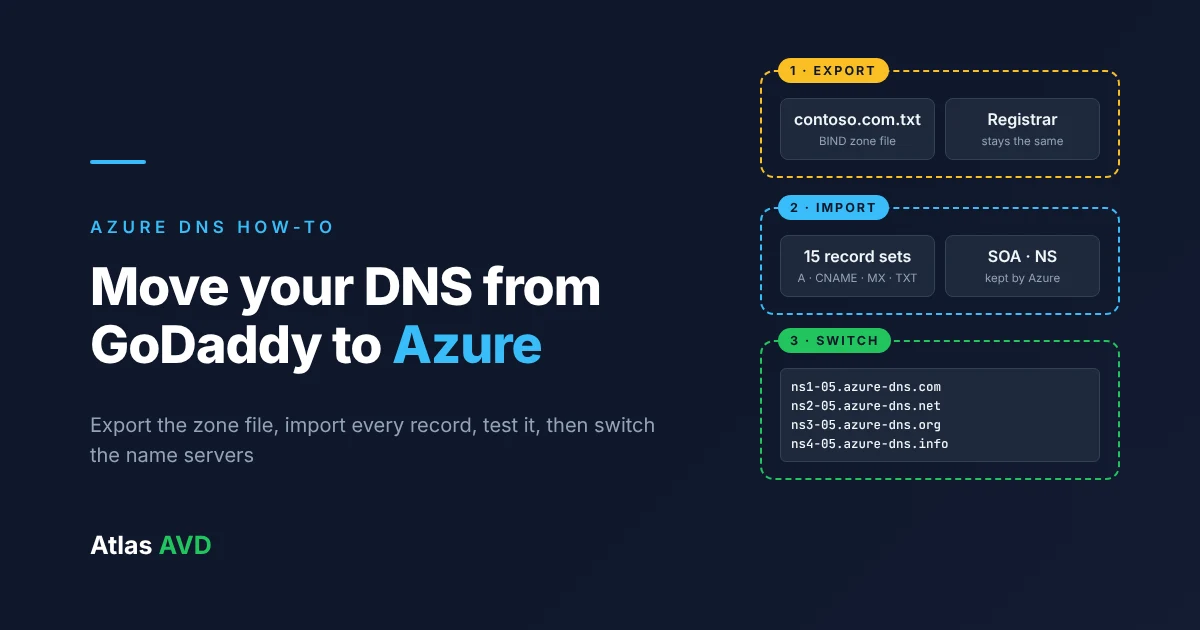
Azure DNS can host the same zone. This guide moves a domain's DNS from GoDaddy to Azure DNS with Atlas AVD, step by step: export the zone file from GoDaddy, create the zone in Azure, import every record, test it, then switch the name servers. The domain itself stays registered at GoDaddy. Only the DNS hosting moves.
The short version: In GoDaddy, open the domain's DNS page and choose Export Zone File from the Actions menu. In Atlas AVD, go to Resources → Network → Public DNS Zones, select Create DNS zone, then open the new zone and choose Import under Record Sets. Atlas previews every record set from the file and keeps the zone's own SOA and NS records, so GoDaddy's name servers never overwrite Azure's. Test a record against one of the four Azure name servers, then in GoDaddy choose DNS → Nameservers → I'll use my own nameservers and enter all four. Everything in Atlas here works on the free Community plan.
1. What moves, and what stays at GoDaddy
Two different jobs are easy to mix up:
- The registrar is where you bought the domain and renew it each year. That stays at GoDaddy.
- The DNS host answers lookups for the domain's records (A, CNAME, MX, TXT and so on). That's what moves to Azure DNS.
The switch itself is one setting at the registrar: the domain's name servers. Until you change them, GoDaddy keeps answering every lookup, so you can build and check the Azure zone without anything changing for your users.
2. Before you start
- Check what depends on GoDaddy's DNS. GoDaddy's domain forwarding, website builder and email products rely on GoDaddy hosting the DNS. If you use any of them, plan their replacement first.
- Lower your TTLs a day ahead (optional). Shorter TTLs on records you expect to change mean resolvers pick up any fix faster during the move.
- Turn off DNSSEC at GoDaddy first, if it's on. A DS record that still points at GoDaddy's keys stops the domain resolving for validating resolvers once Azure starts answering. Turn DNSSEC off at GoDaddy and wait for the DS record to expire, usually a day or two. You can sign the zone in Azure afterwards from the zone's DNSSEC card in Atlas.
- Have Atlas admin access. Creating zones and writing records is an admin action in Atlas, and Atlas makes the changes in your own Azure subscription.
3. Export the zone file from GoDaddy
GoDaddy documents the export like this:
- Sign in to your GoDaddy Domain Portfolio.
- Select the domain to open its Domain Settings page.
- Select DNS.
- From the Actions menu, choose Export Zone File.
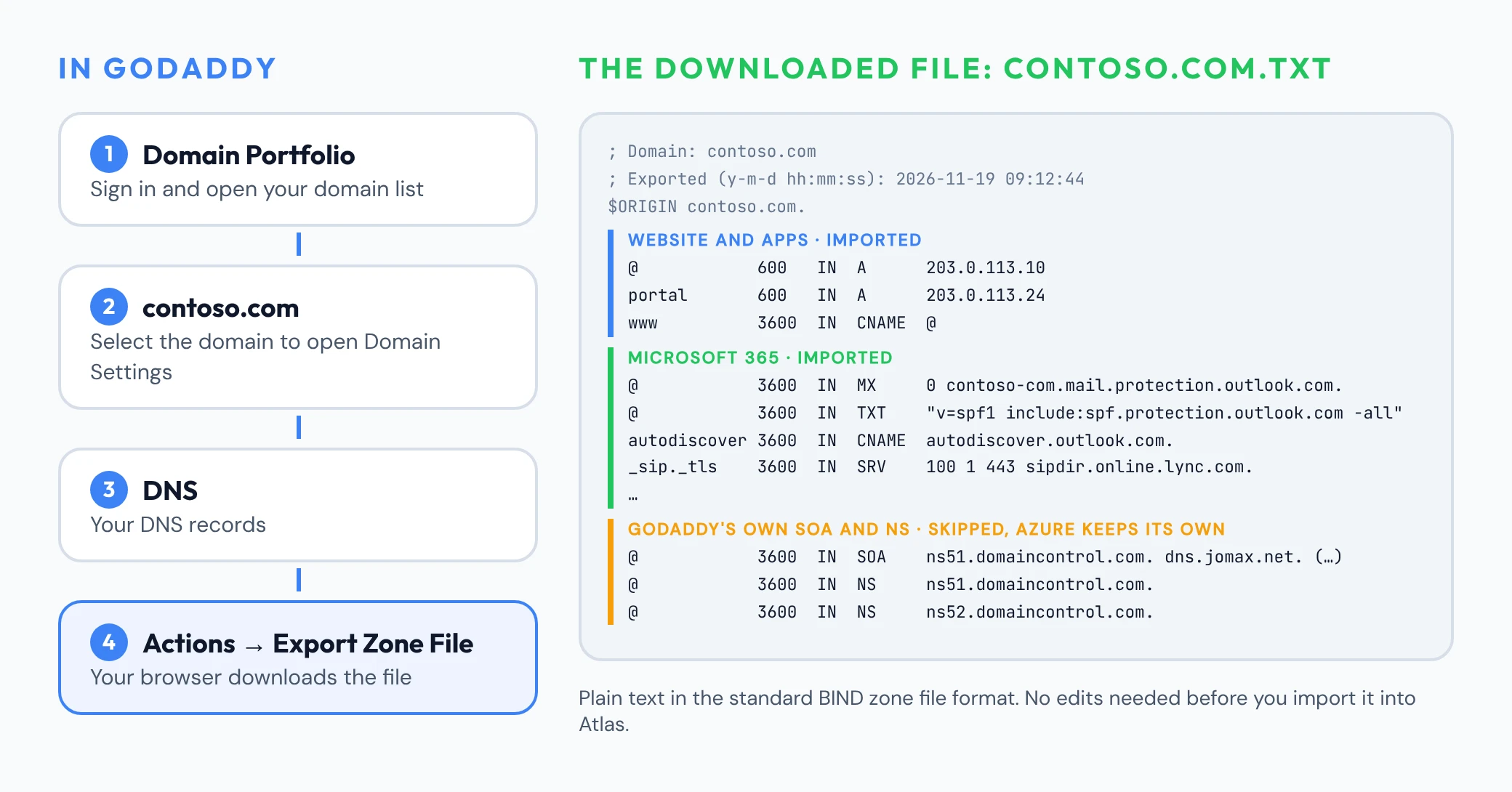
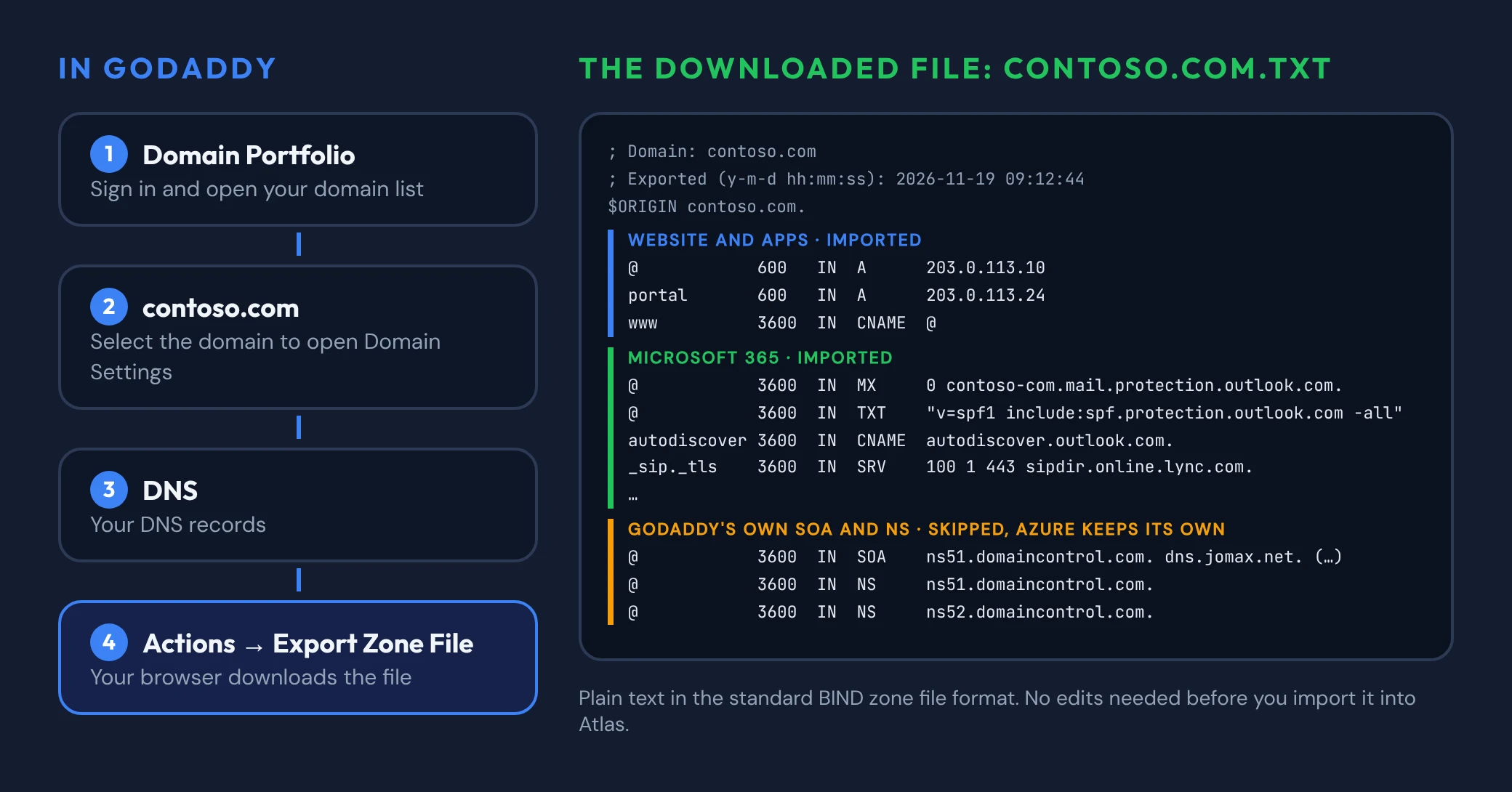
Your browser downloads a text file in the standard BIND zone file format, named after the domain. Open it in any text editor and it looks like this (shortened):
; Domain: contoso.com
; Exported (y-m-d hh:mm:ss): 2026-11-19 09:12:44
$ORIGIN contoso.com.

; SOA Record
@	3600	 IN 	SOA	ns51.domaincontrol.com.	dns.jomax.net. ( ... )

; A Record
@	600	 IN 	A	203.0.113.10
portal	600	 IN 	A	203.0.113.24

; CNAME Record
www	3600	 IN 	CNAME	@
autodiscover	3600	 IN 	CNAME	autodiscover.outlook.com.

; MX Record
@	3600	 IN 	MX	0	contoso-com.mail.protection.outlook.com.

; TXT Record
@	3600	 IN 	TXT	"v=spf1 include:spf.protection.outlook.com -all"

; NS Records
@	3600	 IN	NS	ns51.domaincontrol.com.
@	3600	 IN	NS	ns52.domaincontrol.com.
It lists every record, including GoDaddy's own SOA record and its name servers (ns51.domaincontrol.com and similar). You don't need to edit the file: Atlas skips those records for you.
4. Create the zone in Azure with Atlas AVD
In Atlas, go to Resources → Network → Public DNS Zones and select Create DNS zone. Enter the domain name, pick the resource group the zone should live in, and select Create.
Atlas opens the new zone. Azure assigns it four name servers, one each under azure-dns.com, azure-dns.net, azure-dns.org and azure-dns.info, and they're listed on the zone's Name Servers card. You'll need them at the end.
5. Import the records
On the zone's Record Sets card, select Import. Upload the file you exported from GoDaddy, or paste its contents.
Atlas reads the file in your browser and shows a preview before anything is written:
- every record set in the file, next to what the zone holds now;
- counts of New, Different and Already up to date record sets;
- a Not imported list with the line number and reason for anything that won't be imported. GoDaddy's SOA and name server records appear there as Managed by Azure, which is exactly what you want: copying them in would point the domain back at GoDaddy.
Select Import (for example "Import 15 record sets"). Atlas writes each record set through the same checked path as its record editor and shows the time remaining. If a zone already has records with the same name and type, they're skipped unless you tick Replace record sets that already exist in this zone.
6. Test the zone before you switch
Nothing has changed for your users yet, so check the new zone directly against one of its Azure name servers:
nslookup www.contoso.com ns1-05.azure-dns.com
nslookup -type=MX contoso.com ns1-05.azure-dns.com
Use your own domain and the first name server from your zone's Name Servers card. Each answer should match what GoDaddy returns today.
7. Change the name servers at GoDaddy
GoDaddy documents the change like this:
- Sign in to your GoDaddy Domain Portfolio and open the domain's settings.
- Select DNS, then Nameservers.
- Choose I'll use my own nameservers and enter all four Azure name servers.
- Select Save, then Continue.
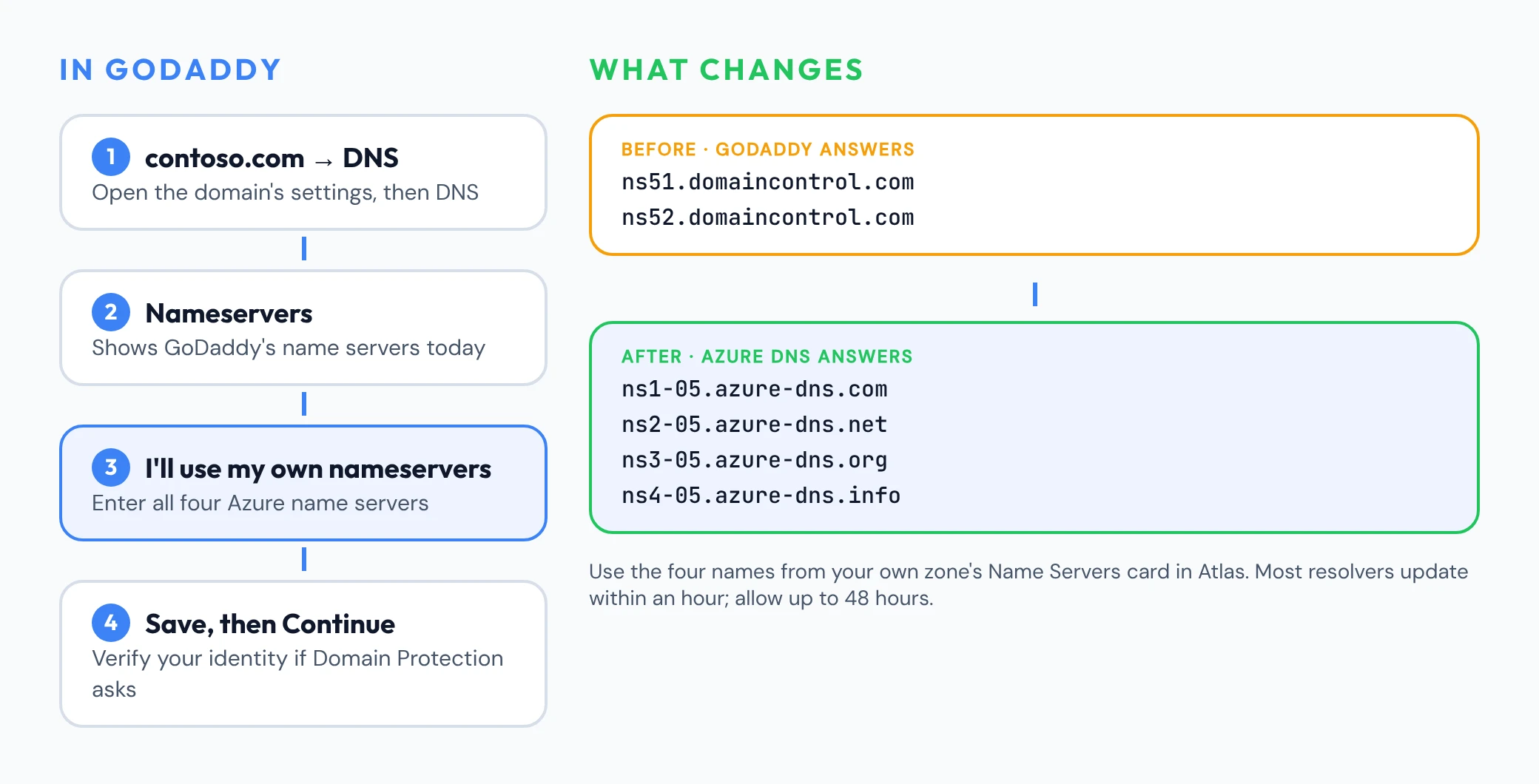
Microsoft's guidance is to use all four name servers Azure assigned, whatever your domain's ending. Some registrars add the trailing period to each name for you. If the domain has GoDaddy's Domain Protection, GoDaddy asks you to verify your identity before saving.
8. Confirm the move
After about ten minutes, check which name servers answer for the domain:
nslookup -type=SOA contoso.com
The primary name server in the answer should be one of your Azure name servers. Most resolvers pick up the change within an hour, but it can take up to 48 hours everywhere. Leave the old records in place at GoDaddy until then.
To undo the move, set the domain back to GoDaddy Nameservers in the same place. Because you didn't delete anything at GoDaddy, its records are still there.
9. Which Atlas plan you need
Everything Atlas does in this guide is on the free Community plan: creating public DNS zones, importing and exporting zone files, and editing records. Atlas only asks that you're an admin.
The GoDaddy integration in Atlas, which lists the domains in your GoDaddy account with their expiry dates and DNS records and alerts you before a domain lapses, is part of the Atlas AVD plan. You don't need it for the move: the zone file export is all Atlas needs.
Sources
Checked as of November 2026.